Crop Steering waters the plants in a grow room automatically. It measures how wet each group of plants is, decides when they need water and how much, and switches your pump and valves to deliver it in small, measured shots. It follows the daily routine that professional growers call crop steering: let the roots dry a little each morning, bring them back up, hold them steady through the day, and let them dry again overnight. You choose how hard to push the plants, from lush vegetative growth to heavy flowering, and it does the watering.
It runs inside Home Assistant and works with the moisture probes, EC probes, pumps and valves you already have there. Everything happens on your own hardware: no cloud account, no subscription.
Try the live demo (runs in your browser with sample data, nothing to install) · Install · User guide · What has been tested


Safety first. This software switches real pumps and valves, unattended, on living plants. Set up each room with watering switched off, check every probe and switch it uses, and do a catch test (measure what actually comes out of the drippers) before you let it water. It does not replace physical safety devices: use valves that close when power is lost, and a float switch or timer that can stop a pump on its own.
It waters by what the plants need, not by a timer. Every zone (one valve and the plants it feeds) has its own moisture probe, and usually an EC probe that reads how salty the root zone is. The controller checks them every minute and waters in shots sized from your pot size, plant count and dripper flow.
It runs the same four-part day that crop steering growers use:
| Part of the day | What happens | Why |
|---|---|---|
| P0: morning dry-back | After the lights come on, it waits until the roots have dried by the amount you chose. | Drying in the morning tells the plant to root and gives you control over its growth. |
| P1: ramp-up | A series of small shots, a few minutes apart, until moisture reaches your target. | Brings the root zone back up gently instead of flooding it. |
| P2: maintenance | A top-up shot whenever moisture falls to your threshold. | Holds the root zone steady through the main part of the day. |
| P3: overnight | Routine watering stops before the lights go off; only an emergency shot if a zone gets too dry. | The overnight dry-back is where much of the steering happens. |
It steers the whole grow, not just one day. A plan sets each zone somewhere between a vegetative profile (more water, gentler dry-backs) and a generative profile (harder dry-backs, pushing flowers), week by week or day by day, and changes the targets automatically at lights-on.
It looks after itself. It stops and tells you when something is wrong instead of guessing:
- An off switch for every room, and a room off setting for an empty room: no watering and no alerts.
- A daily water limit per zone and a maximum shot length, so a stuck sensor can never keep a valve open all day.
- It checks every switch it turns off actually went off. If a valve or pump does not, it holds that equipment, stops watering and alerts you.
- If a moisture probe dies, the zone is still watered, by copying a working zone or on a cautious timed schedule, until the probe reads again.
- Optional feed-water checks: it can refuse to water when the feed water's EC or pH is out of range.
- Clear alerts. Every problem shows up as a Home Assistant Repairs card or notification with a code (such as CS-601) that the built-in Help page explains: what it means, what happens to watering meanwhile, and what to do.
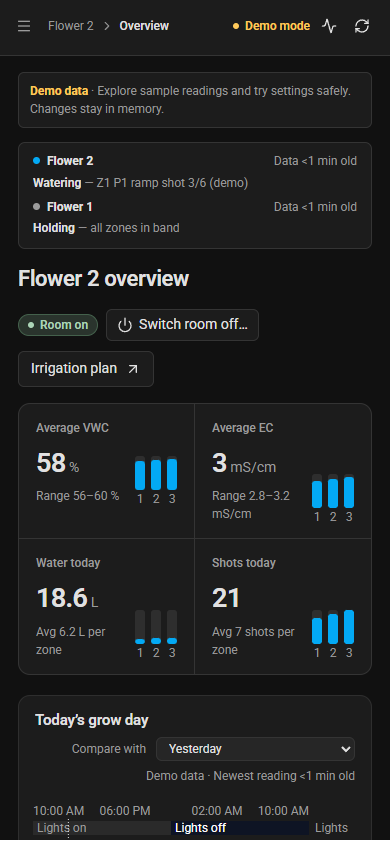
The Overview draws today's grow day for every zone, from lights-on to the next lights-on: the phase each zone was in, every shot, what held a zone back and for how long, and every setting change. On top of that it shows the target each phase was aiming for, yesterday's line for comparison, and a dashed projection of the rest of the day. One line per zone sums it up in numbers, for example "58% now, +0.4 points vs yesterday, P1 target reached 11:16".
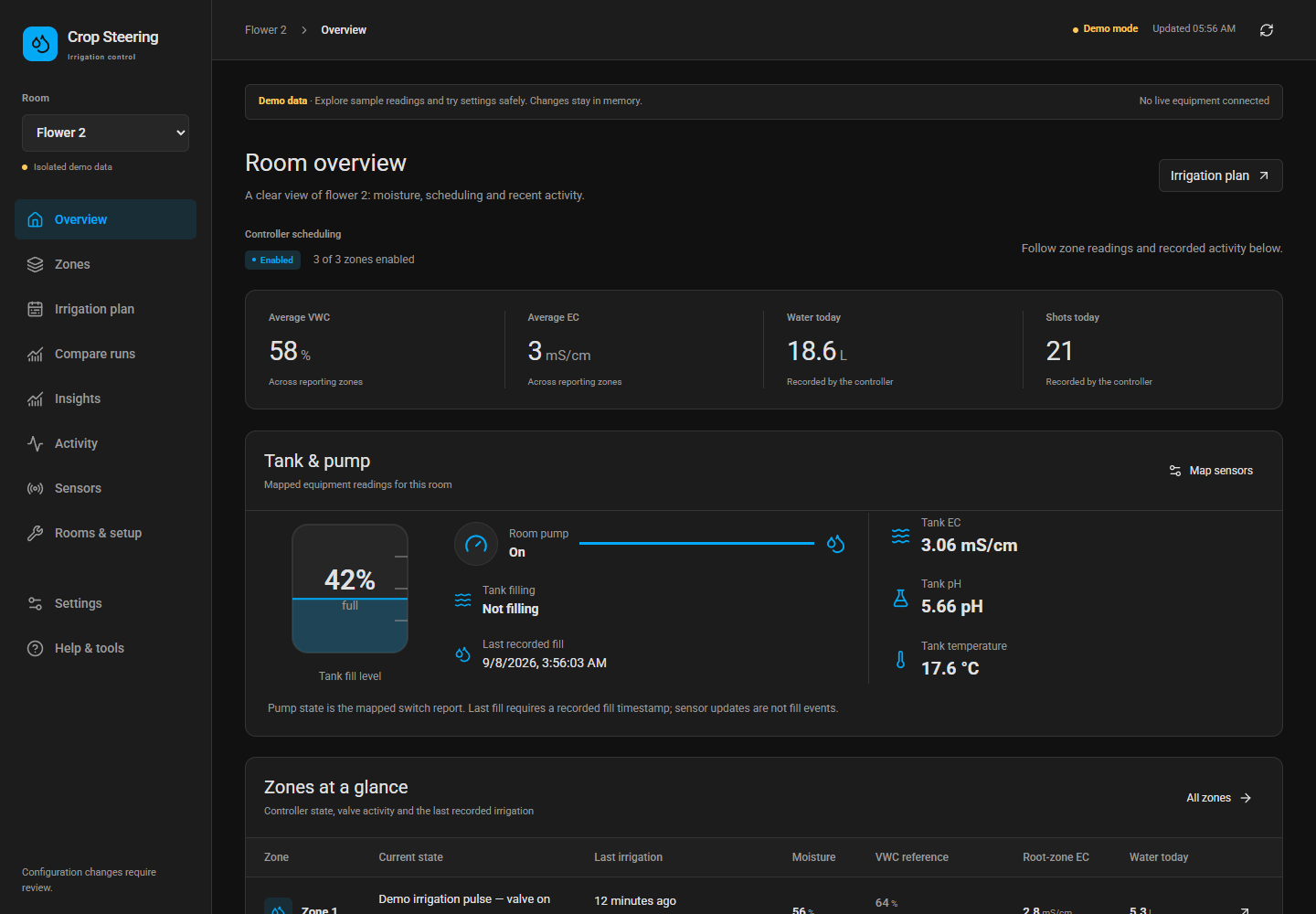
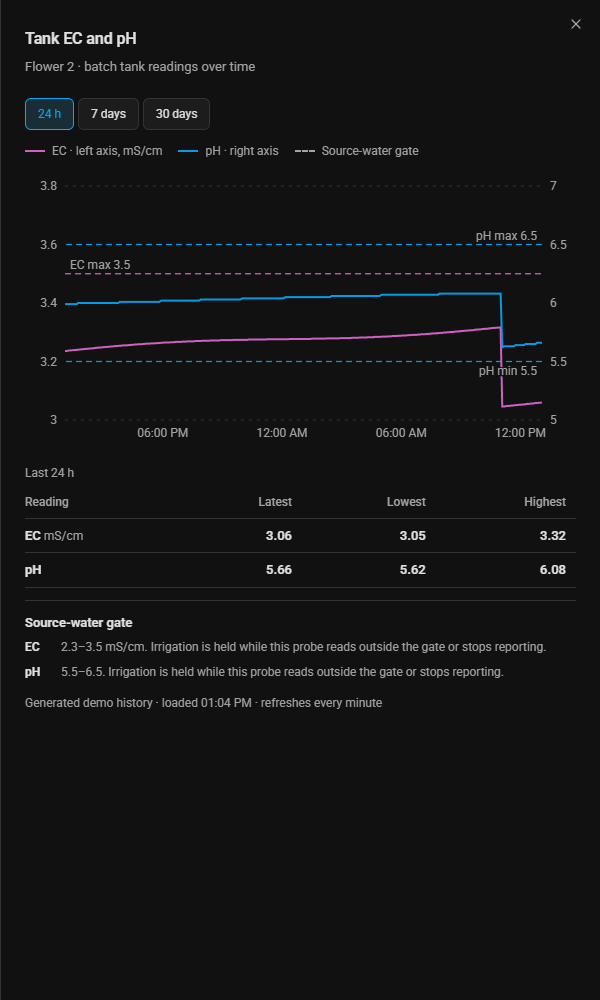
Under it, Zones at a glance shows each zone's moisture against its target, how fast it is drying, today's water against its daily limit, and whether its valve is open, all as small visual bars and coloured pills. The tank card shows the batch tank's level, EC, pH and temperature, with a 24-hour line for EC and pH and a History view going back 30 days.
Irrigation plan, Today puts the targets you set on the same graph as the zone's recorded moisture and EC, for today and yesterday, with the rest of the day projected from how fast that zone really dries. If a target cannot be reached at that zone's drying rate, the graph shows it before you save.
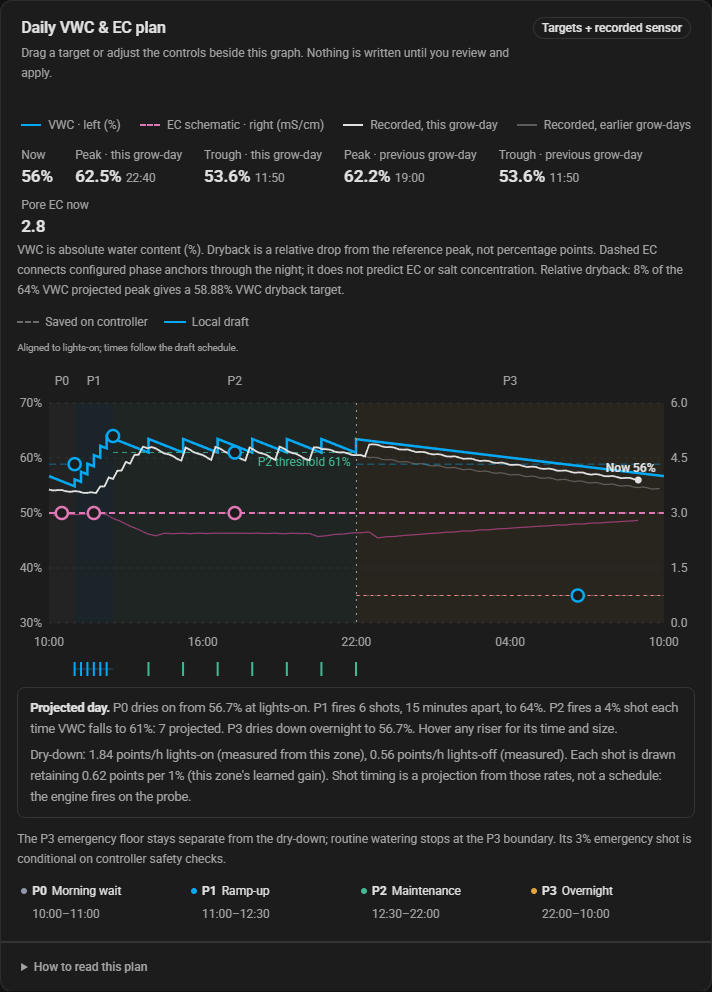
Every change is a draft until you review it. The draft line moves on the graph straight away while the saved one stays visible, so you can see exactly what you are about to change.
Irrigation plan, Schedule lays out every zone's grow week by week. Type how generative you want each week or day (0 to 100 %) straight into the table, and it shows the moisture targets, dry-backs, EC targets and shot sizes that setting gives, next to the week before and after. Save plans you like in the recipe library and reuse them for the next run.
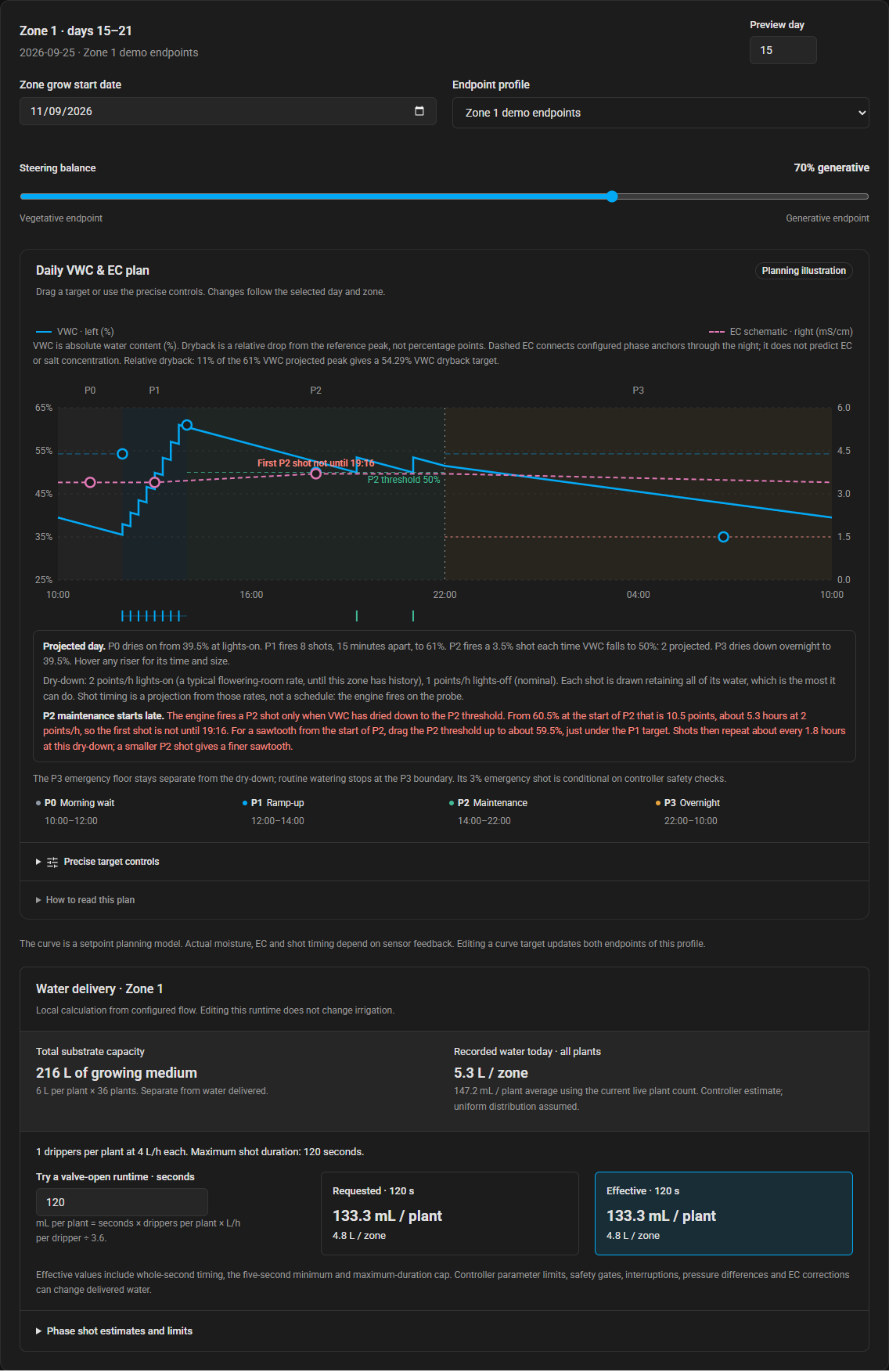
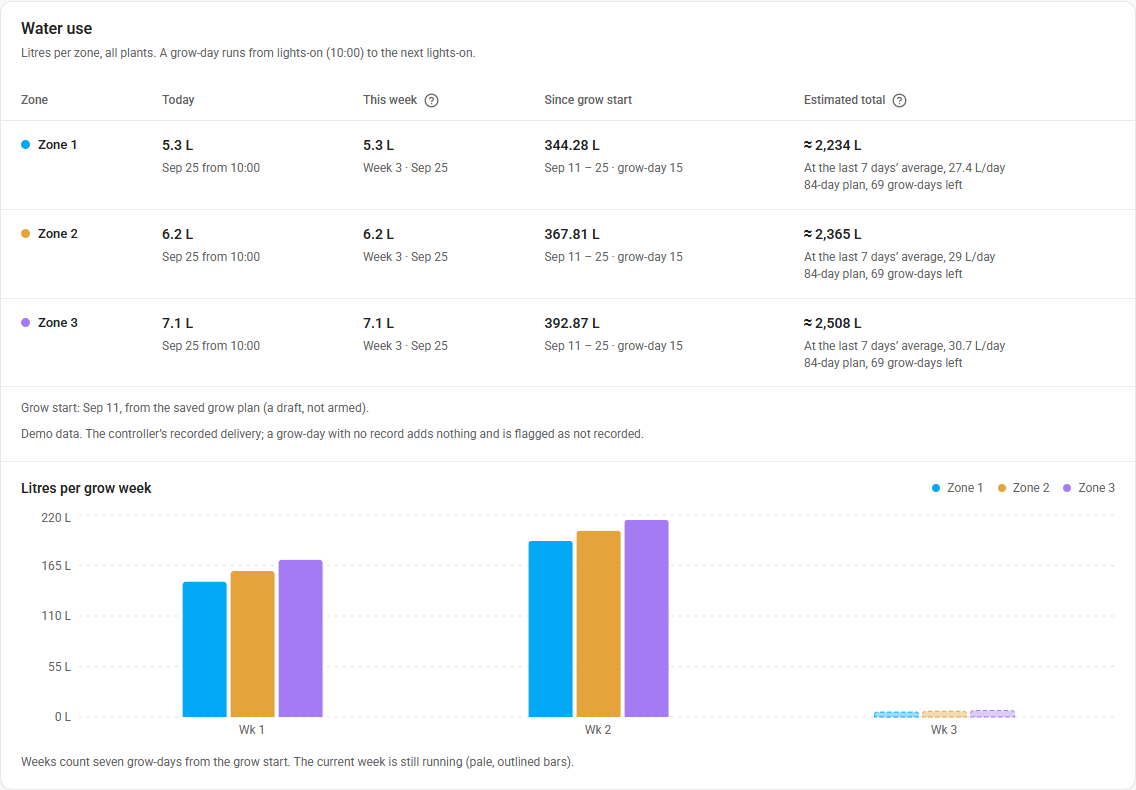
The Zones page shows every zone's water today, this week, since the grow started, litres per grow week, and an estimate for the whole grow. It reads Home Assistant's long-term statistics, so the history goes back as far as your system does.
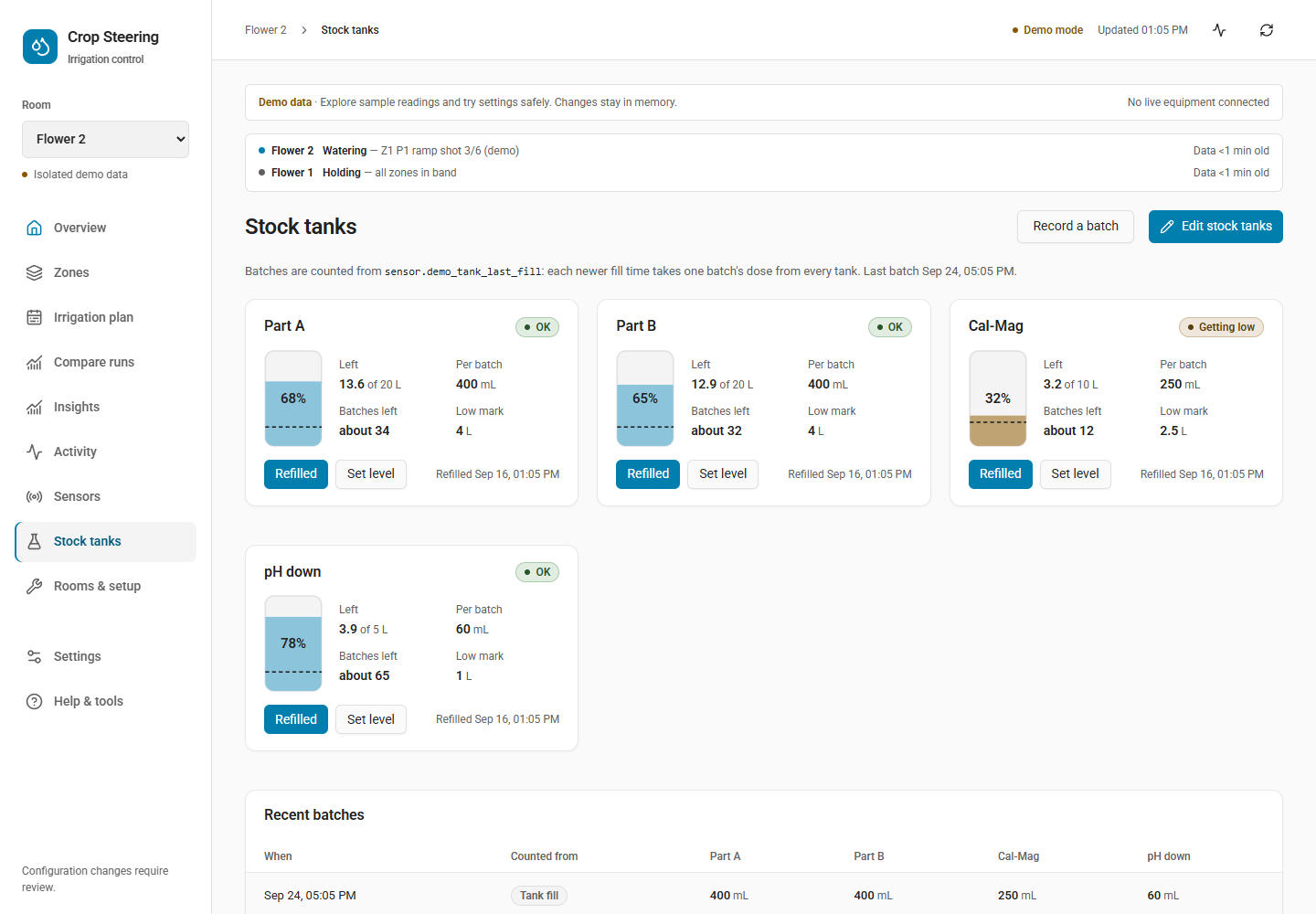
The Stock tanks page tracks the concentrates each batch tank is dosed from. Tell it each tank's size and how much goes into one batch; every batch you make takes its dose off each stock tank. When one runs low you get a Repairs card and an Overview notice saying roughly how many batches are left, and a sensor you can use for a phone alert. Press Refilled when you top it up.
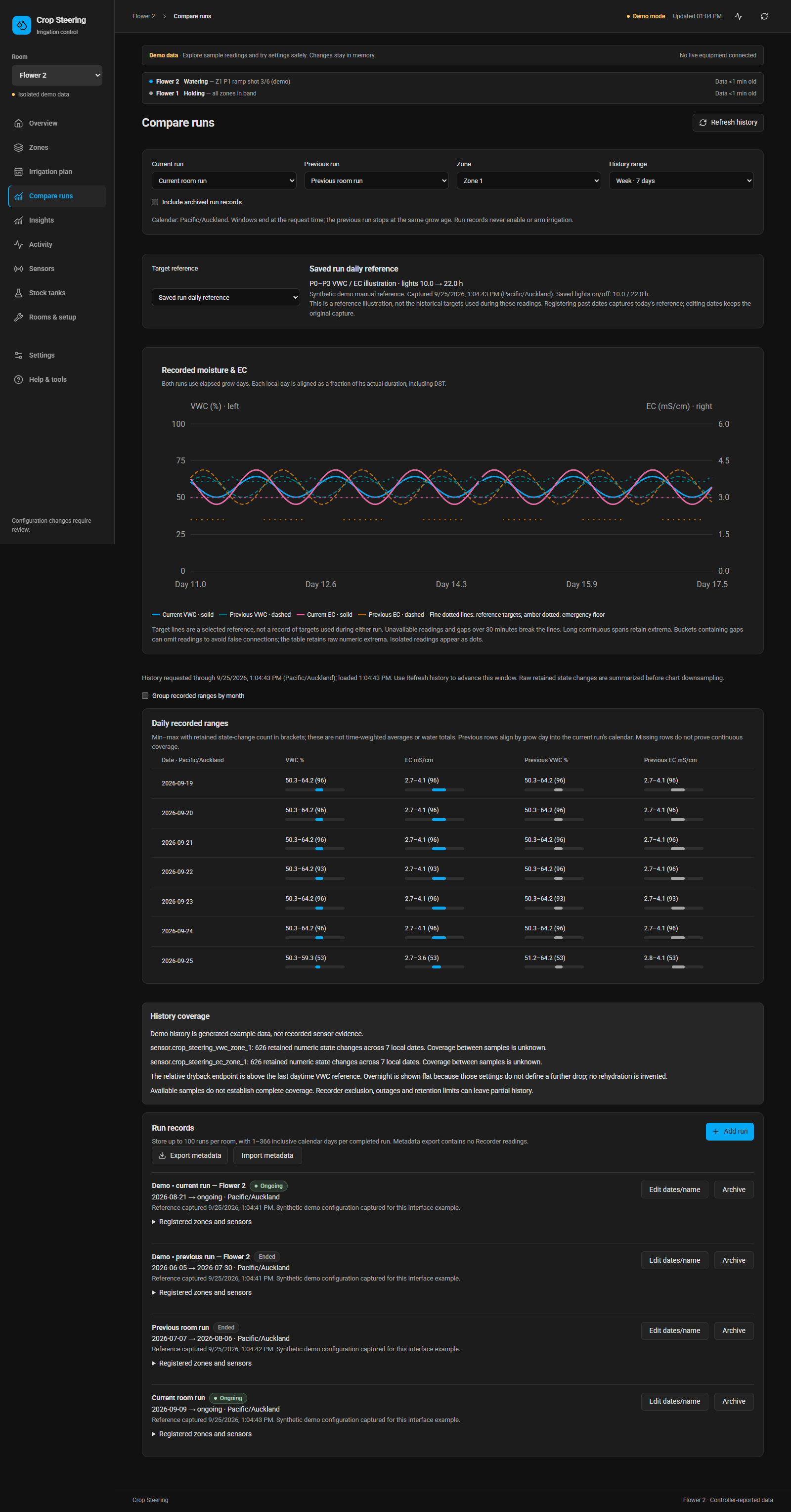
Compare runs lines up recorded days, weeks or a whole run against an earlier run at the same age, or against a target reference, so you can see whether this grow is tracking the last good one.
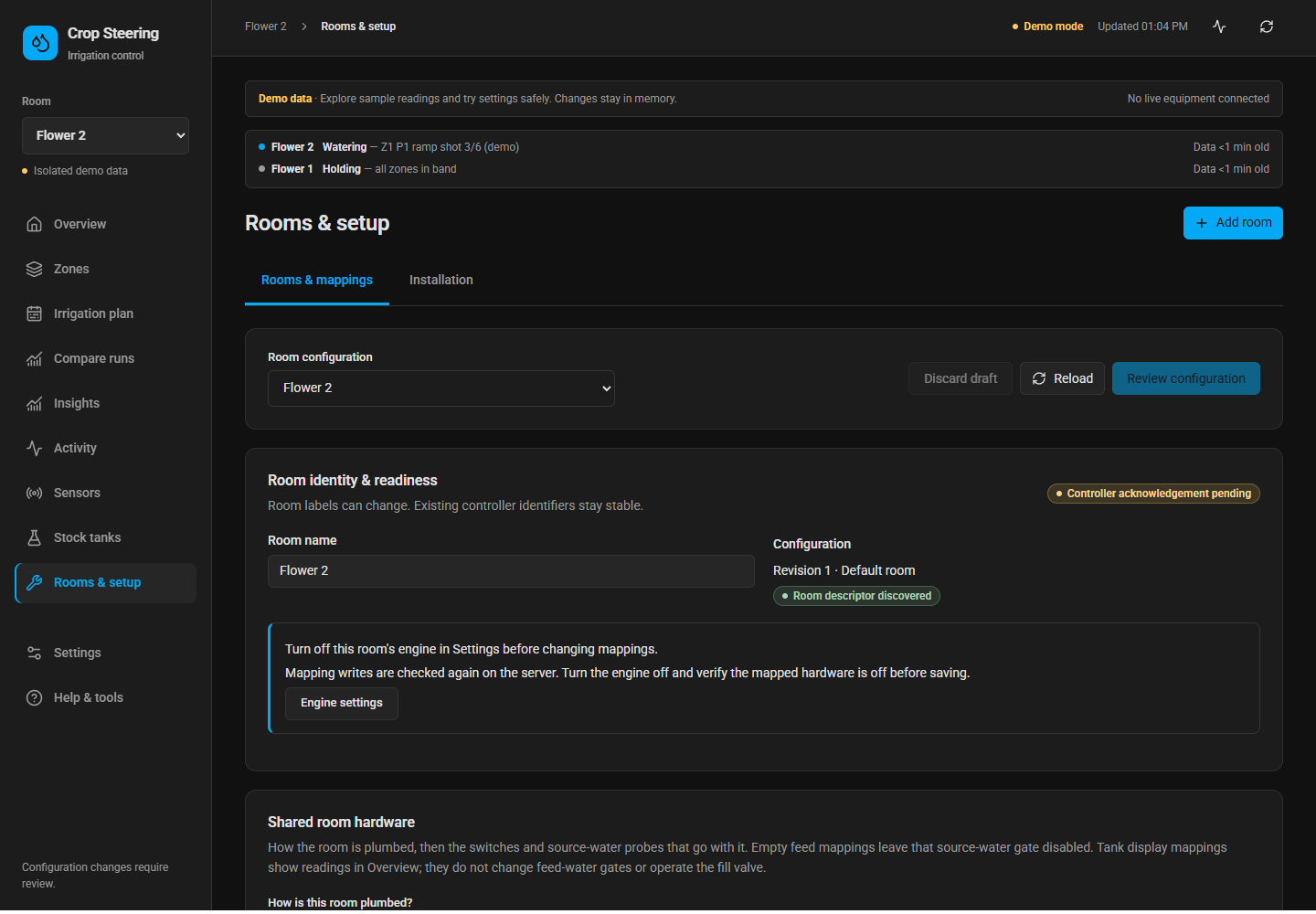
Rooms & setup maps the Home Assistant entities you already have: valves, pump, main line, moisture and EC probes, tank sensors. You enter each zone's pot size, plant count and drippers. Every save is checked first (units, duplicate valves, everything off before a change) and the controller confirms it has picked the new setup up.
More: phones, room off, Auto Setpoints, AI assistants
On a phone. Every page works on a phone, in the Home Assistant app or a browser.
Room off. Switch an empty room off: readings stay visible, but there is no watering of any kind and no alerts. Switching it back on starts a clean day at the right point.
Auto Setpoints (off by default). The controller learns each zone from its own shots: the highest moisture the probe actually reaches, how much a shot raises it, and how fast it dries by day and night. With Auto Setpoints on, it keeps that zone's targets reachable in small, bounded steps, and never while a plan is in charge.
AI assistants (optional). An optional connector lets an AI assistant such as Claude read your rooms, readings and plans and prepare changes for you to review. It can never switch equipment. See MCP.md.
Crop Steering comes in two parts, and automatic watering needs both:
| Part | Installed with | What it does |
|---|---|---|
| The integration | HACS | Holds your rooms, zones, settings, plans and history, and adds the Crop Steering page to the Home Assistant sidebar. It never switches equipment itself. |
| The controller app | The Home Assistant app store | Reads your probes every minute, decides every shot and switches the pump and valves, with every safety check above. |
Both parts carry the same version number. Install and update them together.
| Home Assistant | 2024.10.0 or newer. Every change is tested on 2024.10.0 and on 2026.9.3. |
| The controller app | Home Assistant OS or Supervised, where it installs from the app store (amd64, aarch64 or armv7) and brings its own Python 3.12. Home Assistant Container and Core have no app store: there you run the controller yourself (see the install guide). |
| HACS | 1.6.0 or newer for the guided download, or copy custom_components/crop_steering into Home Assistant by hand. |
| Hardware | A switch Home Assistant can control for each zone's valve (and your pump and main line, if you have them), and a moisture probe per zone. EC probes and tank sensors are optional but recommended. |
| AI assistant connector (optional) | Node.js 22 or newer, on the computer that runs your AI assistant. |
| Account | A Home Assistant administrator, to set up rooms and change plans. |
- Download the integration with HACS, then restart Home Assistant.
- Add Crop Steering and name your first room.
- Add the controller app repository, then install and start Crop Steering Controller.
- Open Crop Steering in the sidebar. Map your valves, pump and probes in Rooms & setup, check the readings in Sensors, and keep watering switched off until everything reads correctly.


The buttons open the right screen; Home Assistant still asks you to confirm each step. Updates arrive the same way: HACS offers the integration and the app store offers the controller. The install guide covers manual installs, upgrades and rolling back.
- Estimates are labelled as estimates. Water per zone is worked out from your flow settings and the time each valve was open. It is not measured delivery; a catch test or a flow meter is the only proof of what actually reached the plants.
- Projections are projections. The dashed "rest of the day" lines use how fast each zone has been drying. The controller always waters by the probe, not by the projection.
- It waters by moisture and EC. It does not dose nutrients or control climate.
- Settings survive updates. Updates install in place and keep your rooms, settings, counters and plans.
- Install, upgrade and roll back
- User guide and planning a grow
- Error codes: what each alert means and what to do
- Troubleshooting
- What has been tested, and the known limits
- Entity reference · All screenshots · Sidebar and menu button
- For developers: architecture, testing, how releases are made and contributing
Report a problem or ask a question in GitHub issues. Include the error code if you have one, both version numbers (shown in the Crop Steering sidebar), and what the controller app's log says.