





Save your Cursor, Claude Code, Codex, and GitHub Copilot chat history across git commits.
Session Control is a cross-IDE session manager for AI chats. Every conversation with Cursor
Agent, Claude Code, Codex, or Copilot can be captured as a structured JSON file in your repo,
linked to the branch and commit it belongs to, and resumed later as context in a new chat —
through the @session-control chat participant.
Session Control has no cloud of its own. Chats are read locally and saved as plain files in your repo, next to the code they produced, in source control you already trust. Content leaves your machine only when you run a feature that sends it to an AI provider you choose, or push to a Git repository you own. Works inside Cursor, Windsurf, VSCodium, and other VS-Code-compatible editors via the Open VSX Registry, and inside stock VS Code.
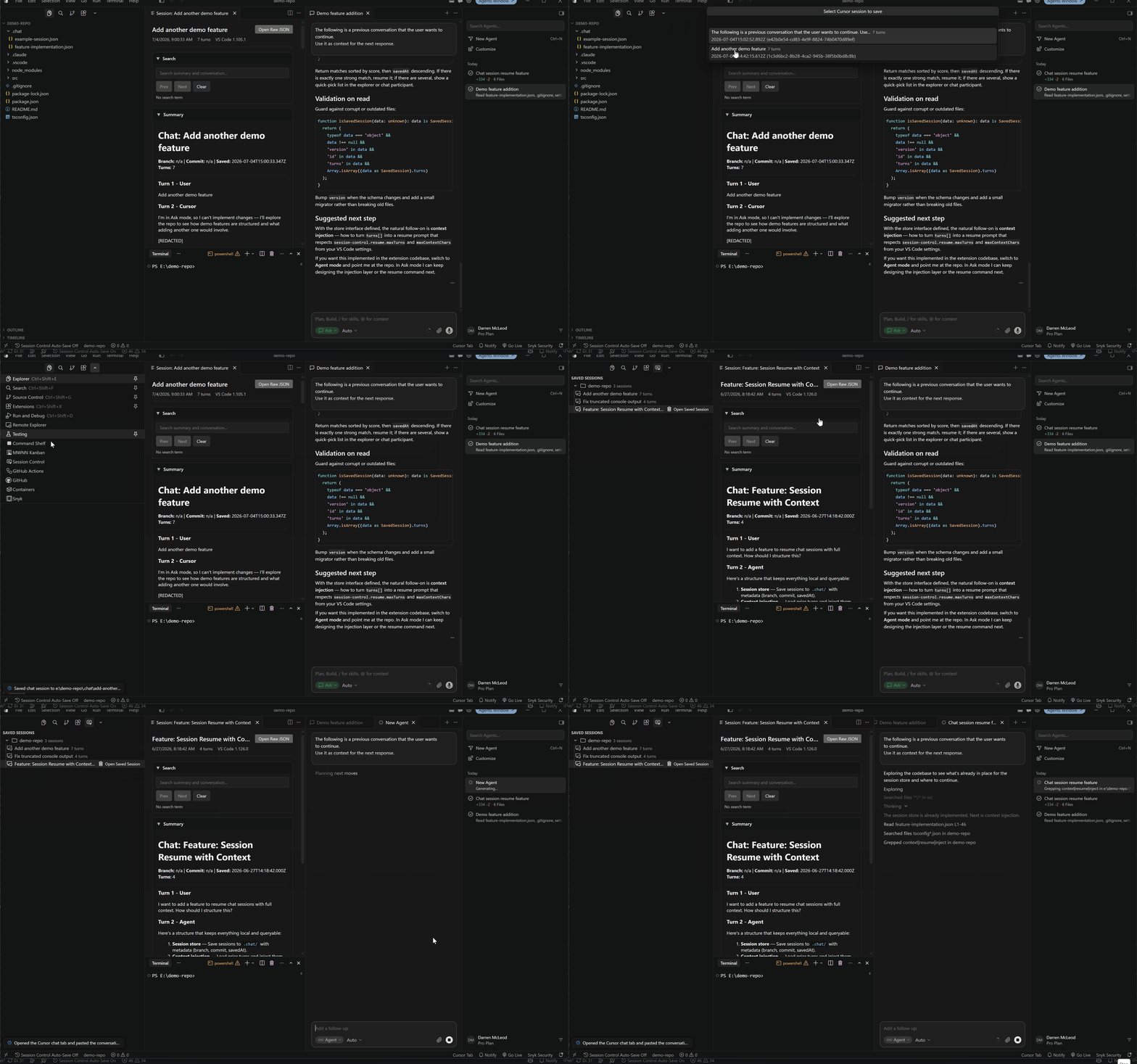
Save a chat, browse saved sessions in the Session Explorer, and resume one as context in a new chat — all without leaving your editor.
- Cross-IDE by design. Save and import chats from Cursor Agent, Claude Code, Codex, and GitHub Copilot — the four assistants polyglot AI users actually run.
- Linked to the commit that produced the code. Every saved session records the branch and SHA, so future you (or a reviewer) can open the chat that explains the diff.
- Lives in your repo, not in someone else's cloud. Sessions are plain JSON in
.chat/, reviewable in diffs and PRs. Optional.gitignoretoggle if you would rather keep them local. - Resume into a fresh chat.
@session-control /resume <name>reloads a saved conversation as LLM context. No copy-paste, no lost decisions.
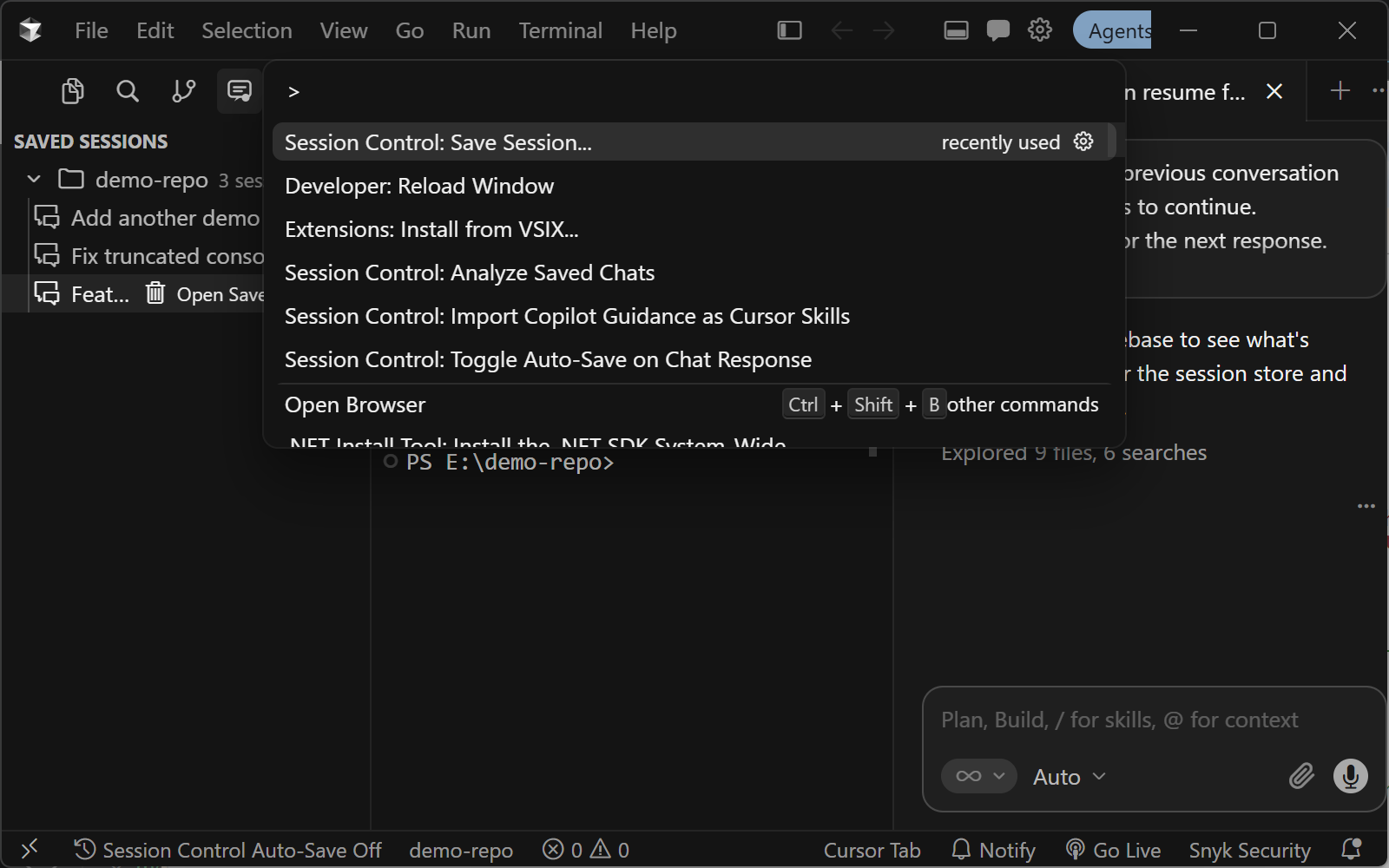
- Save a chat. Open the Command Palette (
Ctrl+Shift+P) and run Session Control: Save Session.... Pick the provider, pick the session. A JSON file appears in.chat/. - Browse it. Open the Session Control view in the activity bar to see every saved session, or click one to open it in the built-in session viewer.
- Resume it. In chat, type
@session-control /resume <session-name>. The conversation is injected as context and you carry on where you left off.
Optional: turn on Session Control: Toggle Auto-Save on Chat Response and Session Control captures matching chats for the workspace automatically.
| Save any chat | Resume as context |
|---|---|
 |
 |
Capture a Cursor, Claude Code, Codex, or Copilot chat as JSON in .chat/, linked to the branch and commit you were on. |
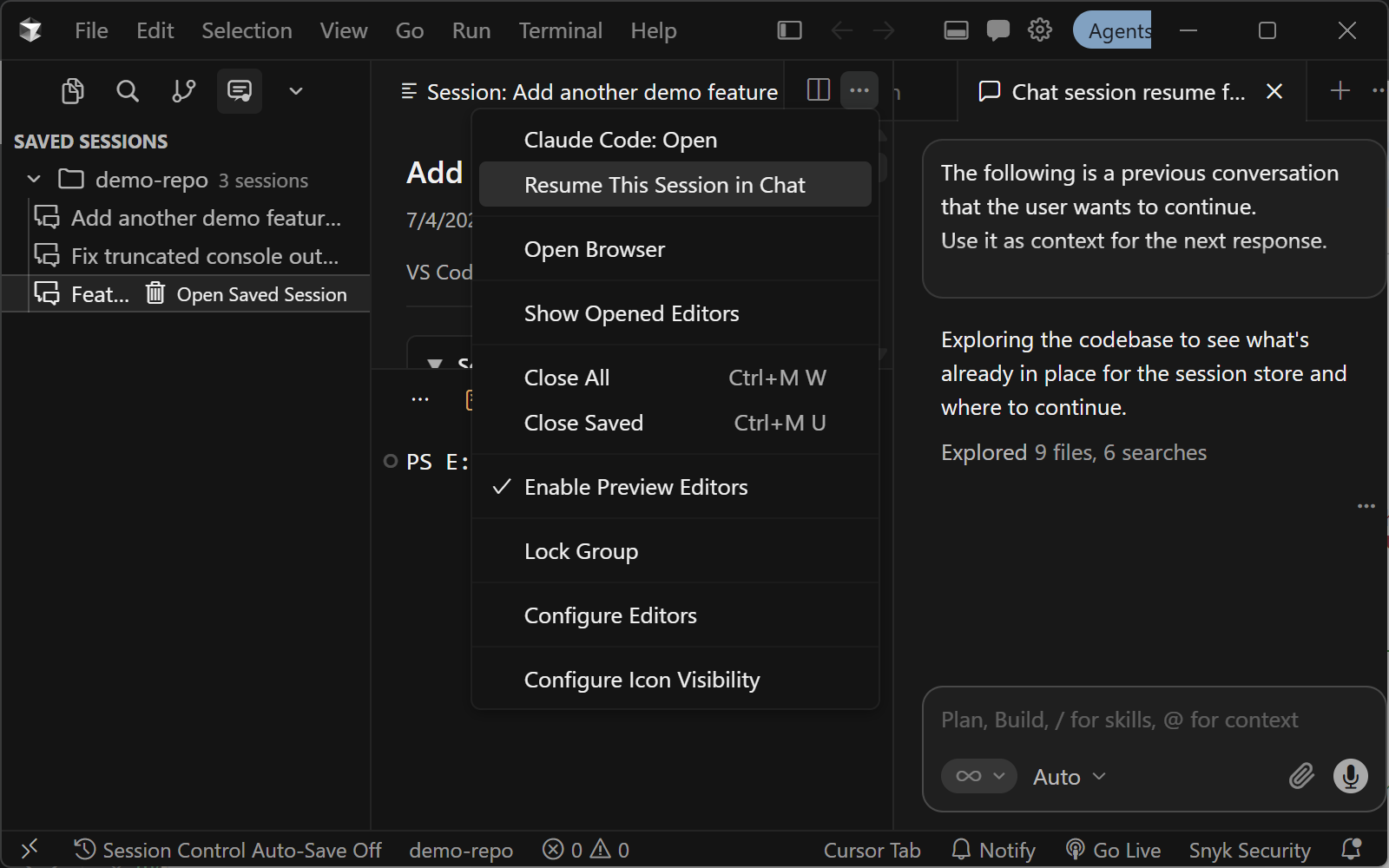
Type @session-control /resume <name> in chat to reload a saved session as context. Fuzzy match on the title. |
| Session Explorer | Cross-IDE provider picker |
|---|---|
 |
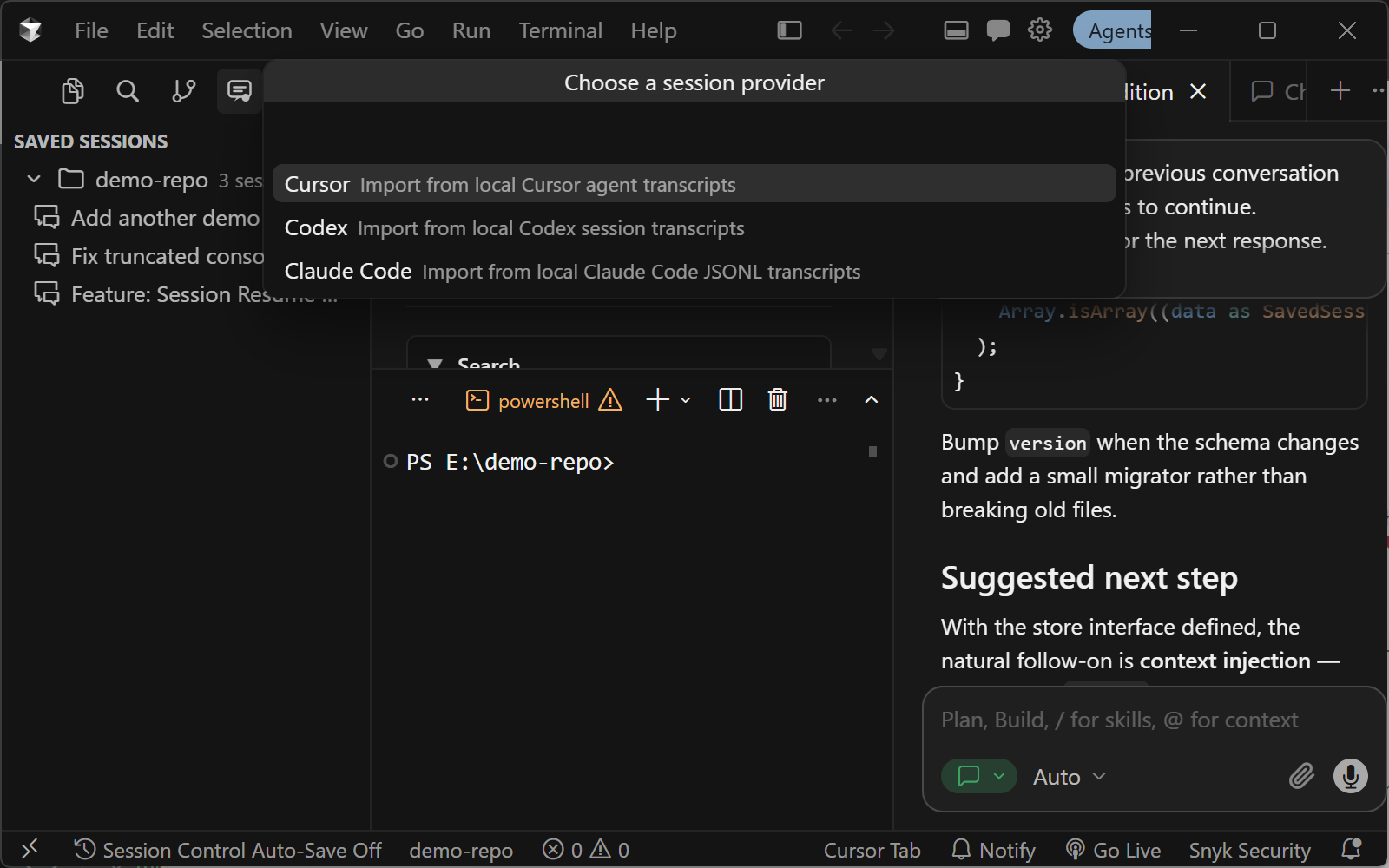 |
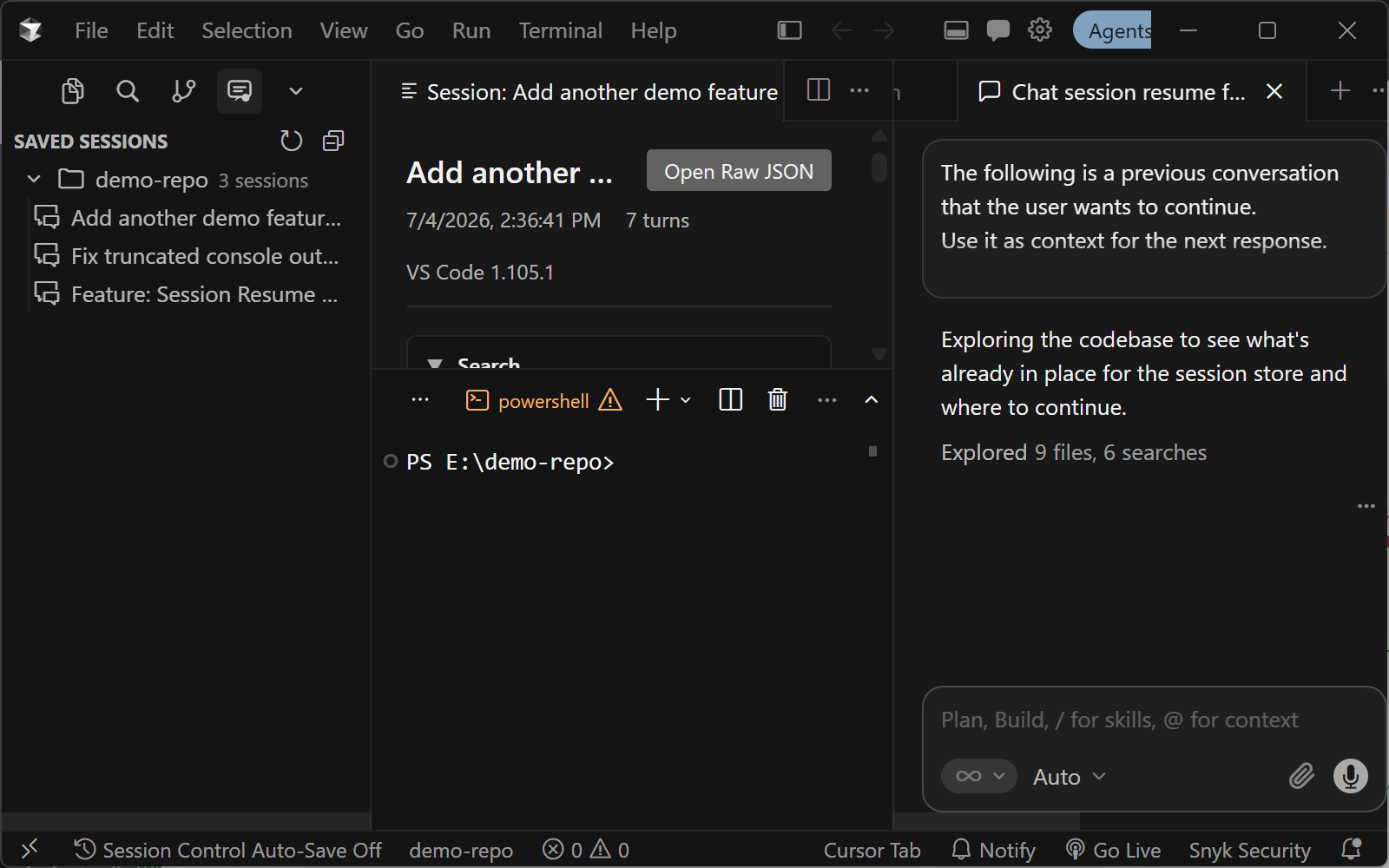
| Browse every saved session per workspace folder. Open, resume, or delete from the activity bar. | Pick a provider per save — Cursor, Claude Code, Codex, or Copilot. Auto-detects when running inside Cursor, Codex, or Claude Code. |
- Provider choice — Keep Copilot as the default save source, switch to Codex or Claude Code for local transcript import, and let Session Control auto-detect Cursor, Codex, or Claude Code when running inside those hosts.
- Save sessions — Capture Copilot, Cursor, Codex, or Claude Code chats as JSON files in
.chat/, enriched with branch and commit metadata. - Resume sessions — Use
@session-control /resume <name>to reload a saved conversation as LLM context in a new chat. - Auto-save project chats — Optionally monitor project-matched VS Code Copilot Chat, GitHub Copilot CLI, Cursor, Codex, or Claude Code transcript updates and save settled responses to the workspace that owns them.
- Analyze saved chats — Use
@session-control /analyzeto review a timeframe of saved sessions, or only chats that have not been analyzed yet. - Implement recommendations — Use
@session-control /implementto open a generated implementation prompt in chat or an agent session. - Import AI skills — Convert repository Copilot guidance into repo-scoped Cursor, Codex, or
Claude Code skills under
.cursor/skills/,.agents/skills/, or.claude/skills/. - Browse, preview, delete — Manage saved sessions via the Session Explorer and command palette, with a built-in session viewer and a one-click Resume from the editor title bar.
- Lives in source control — Sessions are plain JSON files tracked alongside your code, reviewable in diffs and PRs.
- Bloat controls — Configurable file size limits, session splitting, tool output stripping, and automatic pruning of old sessions.
Everything above is free and stays free. Session Control Pro is an optional paid layer that ships inside this same extension — there is no second extension to install. Enter a license key and the Pro commands unlock in place.
| Pro command | What it does |
|---|---|
| Harvest Knowledge to OKF Bundle | Distill saved sessions into a durable, linked knowledge bundle for the workspace |
| Import and Harvest Word Document... | Import an ordered DOCX source with provenance, then review its extracted knowledge before writing |
| Harvest This Session | Run the same harvest scoped to one session from the Session Explorer |
| Search Saved Sessions (All Workspaces) | Full-text quick pick across every saved session, including workspaces that are not open |
| Export Session to AI Control File... | Right-click one session in Saved Sessions and turn it into a Cursor rule, Claude Code skill, Copilot *.instructions.md file, or AGENTS.md section, reviewed before anything is written |
| Sync AI Skills Across Assistants | Keep the same repo guidance matching across Copilot, Cursor, Claude Code, and Codex copies, including edits made to any copy, and ask before overwriting |
| Push Saved Sessions to Git / Pull Saved Sessions from Git | Sync saved sessions with a private Git repository you own, from the Saved Sessions title-bar menu. Both run only when you choose them, and a session changed on two machines is shown to you to resolve, never overwritten |
How these differ from the free commands:
- Export Session to AI Control File... starts from one saved session. The free Analyze Saved Chats command reviews a timeframe of sessions and writes an analysis report, not a control file.
- The free Import Copilot Guidance as ... Skills commands copy Copilot guidance into new skill files once and skip copies that already exist. Sync AI Skills Across Assistants also updates existing copies in both directions. The free import commands stay free.
Git sync uses three settings: session-control-pro.gitSync.remoteUrl (empty by default,
which leaves sync off) and session-control-pro.gitSync.branch (default main) are
machine-scoped, so a workspace cannot redirect your sessions, and
session-control-pro.gitSync.workspaceKey is set per workspace folder. Git uses your own
credentials (SSH agent or credential manager); Session Control never stores them.
Knowledge Harvesting and Export Session to AI Control File... send the selected saved-session
or document content to the AI model you choose, the same way the free Analyze Saved Chats
command does. When TypeSafe is enabled, Search Saved Sessions (All Workspaces) can rerank its
top 10 matches, which sends your query and the title, provider, workspace, date, and snippet of
each of those matches to the TypeSafe AI provider. Git sync pushes only to the repository in
session-control-pro.gitSync.remoteUrl. Saving, resuming, browsing, auto-save, document
extraction, and AI skills sync stay entirely local.
Run Get Session Control Pro from the Command Palette, or visit sessioncontrol.dev/#pro for pricing and checkout. After purchase, run Enter Pro License Key and paste the key from your receipt.
All commands are available from the Command Palette under the Session Control category.
| Command | What it does |
|---|---|
| Save Session... | Pick a provider and a chat, save it to .chat/ |
| Browse Saved Sessions | Quick pick over every saved session |
| View Session | Open the active saved-session JSON in the web viewer |
| Resume This Session in Chat | Resume the session open in the viewer |
| Continue This Session In... | Continue the session open in the viewer in any installed assistant |
| Analyze Saved Chats | Generate an analysis report over a timeframe of saved sessions |
| Implement Latest Analysis | Open the newest analysis report as an implementation prompt |
| Toggle Auto-Save on Chat Response | Enable or disable auto-save for a workspace folder |
| Diagnose Auto-Save | Copy a metadata-only auto-save health report |
| Sort Saved Sessions... | Change Session Explorer sort order |
| Delete Saved Session | Remove a saved session |
| Clean Up Orphaned Session Part Files | Remove leftover split-session parts |
| Import Copilot Guidance as Cursor / Codex / Claude Code Skills | Convert repo guidance into repo-scoped skills |
In chat, the @session-control participant provides /resume, /list, /analyze, and
/implement.
Run Session Control: Save Session.... Session Control prompts for the provider so what gets
saved is always your explicit choice rather than a guess from the active window. Choose
Copilot to read VS Code chat storage, Codex to import local transcripts from
CODEX_HOME or ~/.codex, or Claude Code to import JSONL transcripts from
CLAUDE_CONFIG_DIR or ~/.claude. After picking a provider, choose the session to save. The
JSON file is written to .chat/ in your workspace root.
Cursor support is automatic when the extension is running inside Cursor. Session Control keeps
the experimental Cursor CLI project transcripts and legacy Cursor IDE workspace chatSessions
input as separate sources — see the auto-save reference for the contract.
Claude Code transcripts are read from
~/.claude/projects/<encoded-workspace-path>/<session-id>.jsonl. Set
session-control.claudeCode.homePath if your Claude Code config directory lives somewhere
else. Session Control derives <encoded-workspace-path> the same way Claude Code does by
replacing :, \, and / in the absolute workspace path with -; for example,
E:\chat-commit becomes E--chat-commit. Main session files are normalized into the shared
saved-session format, while nested subagents/ transcripts and Claude sidechain records are
ignored.
In chat, type @session-control /resume <session-name>. The extension does a fuzzy search on
the session name; if multiple sessions match, you pick from the matches. The saved conversation
is injected as context into the current chat.
@session-control /list lists saved sessions, as does Session Control: Browse Saved
Sessions.
Auto-save is off by default and is enabled independently for each workspace folder. Use Session Control: Toggle Auto-Save on Chat Response, or set:
{
  "session-control.autoSaveOnChatResponse": true,
  "session-control.autoSave.providers": ["copilot"]
}
If session-control.autoSave.providers is omitted, enabling auto-save monitors copilot,
codex, claude-code, and cursor. Each enabled folder writes to that folder's configured
session-control.storagePath, and a source must positively match that folder — Session Control
does not assign an ambiguous global chat to whichever editor happens to be active. A normally
completed local response is saved within about 15 seconds.
If a source is not picking up chats, run Session Control: Diagnose Auto-Save.
→ Full auto-save reference — per-source contracts for VS Code Copilot Chat, Copilot CLI, Cursor CLI, and legacy Cursor IDE; project-match rules; behavior across VS Code profiles, Remote SSH, dev containers, and WSL; and how to read the diagnostics report.
In chat, type @session-control /analyze. Choose a timeframe interactively or use a quick alias
such as 24h, 7d, 30d, or needs analysis. For a date-based range, Session Control asks
whether to analyze only chats in that range that have not been analyzed yet, or re-analyze
everything in that range.
Then pick which chat or agent performs the analysis: the in-editor Chat, or whichever of
Codex, Claude Code, and Cursor are installed. With Chat, Session Control runs the analysis itself
using the chat's current model (the Analyze Saved Chats command uses the first Copilot model
that answers direct requests). An agent opens its own chat, receives a workspace-aware analysis
handoff, and uses its own model. The analysis itself always includes all eligible saved sessions
from every provider in the workspace's .chat folder — the choice only selects who generates the
report.
The participant streams a report back into chat and writes a markdown report under
.chat/analysis/reports/, keeping an analysis index in .chat/analysis/index.json so Needs
Analysis only selects chats that are new or changed since the last run. The report compares
candidate recommendations against the current AGENTS.md, .github/copilot-instructions.md,
CLAUDE.md when present, and existing repository-local instruction or skill files, so it lists
gaps that are not already covered — unless it is proposing a concrete improvement,
consolidation, or removal. When repeated workflows suggest a better reusable setup, it can also
recommend creating new AI skill files such as SKILL.md, *.instructions.md, *.prompt.md, or
*.agent.md.
@session-control /implement generates a compact implementation prompt that points a coding
agent at the saved analysis report and keeps the next step focused on those AI control files.
When the report recommends a new reusable AI skill, the generated prompt tells the next step to
create that skill file and any supporting instruction assets. It uses the same chat-or-agent
picker as analysis. An agent (Codex, Claude Code, or Cursor) receives the handoff directly and
uses its own model; choosing Chat opens the prompt in the in-editor chat for review and sending.
Session Control: Implement Latest Analysis does the same from the Command Palette — it looks across the open workspace folders, finds the newest saved analysis report still on disk, and opens the same chat-or-agent picker.
The three Import Copilot Guidance as ... Skills commands scan repository guidance such as
.github/copilot-instructions.md, .github/instructions/*.instructions.md,
.github/prompts/*.prompt.md, and other repo-local *.instructions.md, *.prompt.md,
*.agent.md, or SKILL.md files. Each source is imported into .cursor/skills/<slug>/SKILL.md,
.agents/skills/<slug>/SKILL.md, or .claude/skills/<slug>/SKILL.md, without overwriting
existing skills.
Open the Session Control activity bar view and click a session under Saved Sessions, or open a saved session file and use the View Session preview icon in the editor title bar. The title action appears only when the active file is a valid Session Control session document; if your JSON does not match the schema, the viewer action is hidden and the command reports that the format is not recognized.
When a session is open in the viewer, a ▶ Resume icon in the editor title bar opens the chat
panel with @session-control /resume <session-title> pre-filled.
A saved session is not tied to the assistant that produced it. With a session open in the viewer, use the Continue This Session In... title-bar action (also on the Command Palette) to pick which assistant should receive the transcript. The picker lists only the providers whose chat command is registered in the current editor, so a Cursor session can be continued in Claude Code, Codex, or Copilot whenever those are installed. Copilot targets get the transcript prefilled into the chat input; the other providers have it copied to the clipboard and pasted into a focused chat panel. When the target differs from where the session was captured, the prompt tells the receiving assistant that the transcript came from a different assistant.
The same resume.maxTurns, resume.maxContextChars, resume.overflowStrategy, and
resume.providerCommands settings apply, and if the chosen target cannot be opened, Session
Control falls back to the VS Code chat resume flow.
| Setting | Default | Description |
|---|---|---|
session-control.storagePath |
.chat |
Folder (relative to workspace root) where sessions are saved |
session-control.save.provider |
copilot |
Provider preference for manual flows that do not prompt; this setting does not control auto-save |
session-control.copilot.homePath |
"" |
Optional GitHub Copilot CLI home directory override; when empty, Session Control uses COPILOT_HOME or ~/.copilot |
session-control.codex.homePath |
"" |
Optional Codex home directory override; when empty, Session Control uses CODEX_HOME or ~/.codex |
session-control.claudeCode.homePath |
"" |
Optional Claude Code home directory override; when empty, Session Control uses CLAUDE_CONFIG_DIR or ~/.claude |
session-control.cursor.userDataPath |
"" |
Optional Cursor user data directory for legacy workspace chatSessions JSONL fallback; when empty, Session Control uses the default Cursor user data location for this OS |
session-control.cursor.projectsPath |
"" |
Optional Cursor projects directory for Agent transcript import; when empty, Session Control uses ~/.cursor/projects |
session-control.autoSaveOnChatResponse |
false |
Enable project-scoped auto-save for this workspace folder after each detected response or transcript update |
session-control.autoSave.providers |
all four | Providers monitored while workspace-scoped auto-save is enabled — copilot, codex, claude-code, cursor. copilot includes both VS Code Copilot Chat and GitHub Copilot CLI sources |
session-control.includeInGitignore |
false |
Add storage folder to .gitignore |
session-control.resume.maxTurns |
50 |
Max turns injected when resuming |
session-control.resume.overflowStrategy |
summarize |
summarize, truncate, or recent-only |
session-control.resume.maxContextChars |
80000 |
Hard cap on characters injected as context |
session-control.resume.target |
origin-agent |
Default target for Resume This Session in Chat: origin-agent or vscode-chat. Continue This Session In... asks instead |
session-control.resume.providerCommands |
{} |
Per-provider chat command ID overrides used by both resume and continue |
session-control.save.maxFileSize |
1mb |
Max size per session file (e.g. 500kb, 1mb) |
session-control.save.overflowStrategy |
split |
split, truncateOldest, or warn |
session-control.save.stripToolOutput |
false |
Strip verbose tool call outputs to reduce size |
session-control.save.maxSavedSessions |
0 |
Max sessions to keep (0 = unlimited) |
session-control.save.pruneAction |
archive |
archive or delete when pruning old sessions |
⚠️ Do not commit.chat/sessions to a public repository without reviewing them first.Saved session files are plain JSON that records the full conversation between you and the selected AI provider, including all tool call inputs and outputs. These files routinely contain:
- Local filesystem paths (e.g.
C:\Users\yourname\...) that expose your OS username and machine layout- Workspace-internal details captured by agent tool calls (file contents, terminal output, search results)
To keep sessions private, enable the built-in setting:
"session-control.includeInGitignore": trueThis automatically adds your storage folder to
.gitignoreso sessions are never staged. Alternatively, add.chat/(or your configuredstoragePath) to.gitignoremanually.
- VS Code
^1.93.0, or a VS-Code-compatible editor (Cursor, VSCodium, Windsurf, Positron, Trae) - GitHub Copilot extension installed and signed in to save VS Code Copilot Chat sessions
- GitHub Copilot CLI installed and signed in to auto-save its local session event logs
- Cursor installed locally to import or auto-save Cursor Agent transcript sessions
- Codex installed locally to import or auto-save Codex sessions, or create repo-scoped Codex skills
- Claude Code installed locally to import or auto-save Claude Code sessions, or create repo-scoped Claude Code skills
Each requirement applies only to the provider you want to use — none of them are needed to install Session Control.
Search for Session Control in your editor's extensions view, or install from:
- Open VSX Registry — for Cursor, Windsurf, VSCodium, Codium, Positron, Trae, and other VS-Code-compatible editors.
- VS Code Marketplace — for stock Visual Studio Code.
- Auto-save reference — sources, project matching, profiles, remote and WSL boundaries, diagnostics
- Changelog
- Contributing — dev setup, testing instructions, and PR guidelines