A simple Markdown editor (HTML/JS/CSS) for easy embedding in PHP apps.
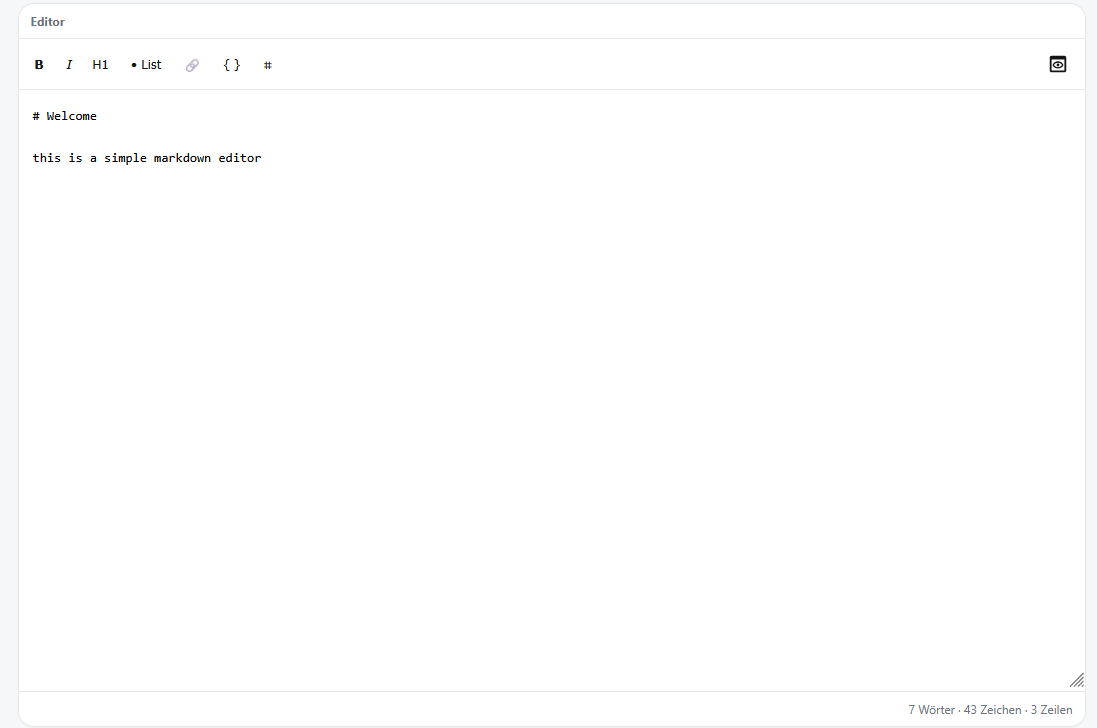
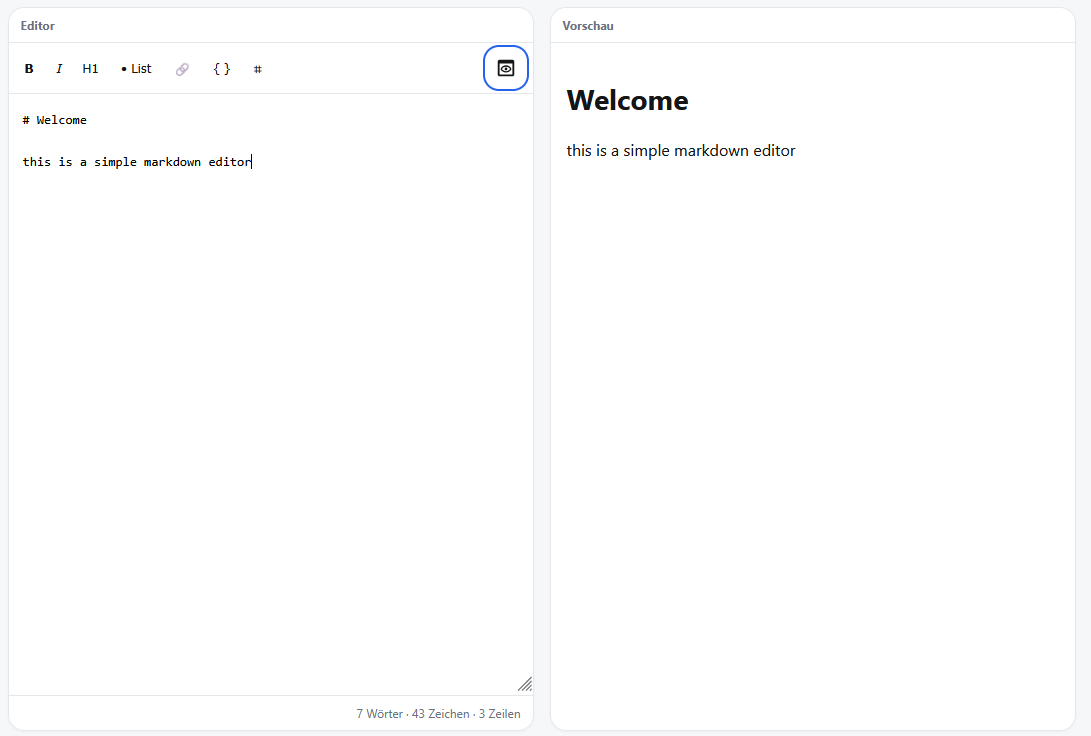
- PHP >= 8.1
Copy src/MarkdownEditor.php and public/markdown-editor.js into your project — no further dependencies required.
your-project/
├── public/
│   └── markdown-editor.js
└── src/
    └── MarkdownEditor.php
composer require cheinisch/markdown-editor<?php require_once __DIR__ . '/src/MarkdownEditor.php'; ?>
<!DOCTYPE html>
<html lang="de">
<head>
<?= MarkdownEditor::renderHead() ?>
</head>
<body>
<?= MarkdownEditor::render() ?>
<?= MarkdownEditor::renderFoot() ?>
</body>
</html>With Composer autoloading:
<?php use cheinisch\MarkdownEditor\MarkdownEditor; ?>
<!DOCTYPE html>
<html lang="de">
<head>
    <?= MarkdownEditor::renderHead() ?>
</head>
<body>
    <?= MarkdownEditor::render() ?>
    <?= MarkdownEditor::renderFoot() ?>
</body>
</html>
Render order matters: renderHead() must appear inside <head>, render() inside <body>, and renderFoot() must come after render() — ideally just before </body>. The JavaScript loaded by renderFoot() queries the editor element by ID; if it runs before render() has written the DOM, the editor will silently fail to initialise.
External dependencies: renderHead() loads three libraries from public CDNs — Tailwind CSS (with typography plugin), marked.js, and DOMPurify. No SRI hashes are set. If your Content Security Policy restricts external scripts, you will need to self-host these files and call renderHead() manually or skip it and include equivalent tags yourself.
The editor provides two independent mechanisms for persisting content. Both are optional and can be combined.
Activating this option saves the editor content to the browser's localStorage on every keystroke and restores it automatically on the next page load.
<?= MarkdownEditor::render([
    // true  → uses the default key 'markdown-editor-content'
    // string → uses a custom key
    'localStorage' => 'my-blog-draft',
]) ?>
How it works:
- Loading: On page load, the editor checks
localStoragefor the configured key. If a value is found, it is placed into the editor immediately. - Saving: Every
inputevent writes the current editor content back tolocalStorage. No server request is made — everything stays in the browser.
Note:
localStorageis scoped to the browser and origin. It is suitable for draft/autosave scenarios but not for sharing content between users or devices.
This option links the editor to a named <textarea> element so content is submitted as part of a regular HTML form. This is the recommended approach when saving to a database or server-side file.
<?= MarkdownEditor::render([
    'field' => 'post_content',
]) ?>
How it works:
- Loading: If a
<textarea id="post_content">already exists in the DOM with a non-empty value (e.g. pre-filled from the database), the editor reads that value on initialisation and displays it. This is how edit forms work — populate the textarea server-side, and the editor picks it up automatically. - Saving: Every
inputevent mirrors the editor content into the linked<textarea>. When the surrounding form is submitted, the content travels to the server like any normal form field.
If the <textarea> does not exist yet, the editor creates a hidden one automatically with the given ID. The hidden element is still included in the form submit.
Edit form example:
<!-- Server-side: fetch the existing content from DB -->
<?php $post = getPostFromDatabase($id); ?>

<form method="POST" action="/save">
    <input type="hidden" name="id" value="<?= $post['id'] ?>">

    <!-- Pre-fill the textarea so the editor can load it -->
    <textarea id="post_content" name="content" hidden>
        <?= htmlspecialchars($post['content']) ?>
    </textarea>

    <?= MarkdownEditor::render(['field' => 'post_content']) ?>

    <button type="submit">Save</button>
</form>
Create form example:
<!-- No textarea needed in advance — the editor creates a hidden one -->
<form method="POST" action="/save">
    <?= MarkdownEditor::render(['field' => 'post_content']) ?>
    <button type="submit">Save</button>
</form>
// /save.php — receiving the content
$content = $_POST['post_content'] ?? '';
saveToDatabase($content);Both options can be active at the same time. A common pattern is to use localStorage as a crash-safe draft buffer while the form submit handles the actual persistence:
<?= MarkdownEditor::render([
    'localStorage' => 'post-draft-' . $postId,
    'field'        => 'post_content',
]) ?>
With this setup, unsaved drafts survive accidental page reloads, and the definitive save still goes through the form.
Tip: After a successful form submit, clear the localStorage draft server-side via JavaScript or by passing the saved content back into the textarea, so the editor loads the canonical version instead of a stale draft.
If neither localStorage nor field is configured, the editor starts empty on every page load and content is lost on reload. This is useful for standalone demos or one-shot tools where persistence is handled entirely by custom JavaScript outside the editor.
All options are optional.
<?= MarkdownEditor::render([

    // Visible toolbar buttons.
    // Possible values: 'bold', 'italic', 'underline', 'strikethrough',
    //                  'h1', 'h2', 'h3', 'list', 'quote', 'code',
    //                  'link', 'hr', 'table', 'image-url', 'library'
    // Default: all buttons
    'buttons' => ['bold', 'italic', 'h1', 'h2', 'list', 'link', 'hr', 'table', 'library'],

    // Editor height in pixels. Default: 700
    'height' => 500,

    // Auto-save content to localStorage.
    // true          → key 'markdown-editor-content'
    // 'custom-key'  → custom key
    'localStorage' => 'my-editor',

    // Sync content with an existing <textarea> by ID.
    // If the element already exists in the DOM it will be used as-is.
    // If it doesn't exist, the editor creates a hidden one automatically.
    'field' => 'post_content',

    // Directories for the image/file library modal.
    // Two modes are available — see "Image Library" below.
    'library' => [
        [
            'name' => 'All Images',
            'path' => '/api/media/images',
        ],
        [
            'name'   => 'Blog',
            'path'   => '/api/media/blog',
            'upload' => true,
        ],
        [
            'name'      => 'Archive',
            'path'      => '/api/media/archive',
            'recursive' => true,
        ],
        [
            'name'      => 'Downloads',
            'path'      => '/api/media/downloads',
            'upload'    => true,
            'recursive' => true,
        ],
    ],

]) ?>The library modal lets users browse and insert images (and other files) directly from the editor. It supports two integration modes.
Pass fsPath instead of path to let the editor manage the HTTP endpoint automatically. The directory is registered in the PHP session and served by the bundled md-handler.php. This is the quickest setup.
<?= MarkdownEditor::render([
    'library' => [
        [
            'name'           => 'Uploads',
            'fsPath'         => __DIR__ . '/storage/uploads',
            'upload'         => true,
            'handlerOptions' => [
                'types'   => ['image/jpeg', 'image/png', 'image/webp'],
                'maxSize' => 8 * 1024 * 1024,
            ],
        ],
    ],
]) ?>
webPath is derived automatically from $_SERVER['DOCUMENT_ROOT']. You can override it explicitly if your setup differs:
[
    'name'    => 'Uploads',
    'fsPath'  => __DIR__ . '/storage/uploads',
    'webPath' => '/storage/uploads',
    'upload'  => true,
]
Note:
fsPathmode requires an active PHP session. The editor callssession_start()automatically if no session is running yet.
Point path at your own PHP file that calls MarkdownEditor::handleRequest(). Use this when you need authentication, logging, or custom storage logic.
<?= MarkdownEditor::render([
    'library' => [
        [
            'name'      => 'Blog Images',
            'path'      => '/api/media/blog',
            'upload'    => true,
            'recursive' => true,
        ],
    ],
]) ?>
// /api/media/blog.php
<?php
require_once __DIR__ . '/../../src/MarkdownEditor.php';
MarkdownEditor::handleRequest(
fsDirectory: __DIR__ . '/../../storage/media/blog',
webPath: '/storage/media/blog',
options: [
// Allowed MIME types for upload
'types' => ['image/jpeg', 'image/png', 'image/gif', 'image/webp'],
// File extensions shown in the library
// Default: jpg, jpeg, png, gif, webp, avif, svg
'listExtensions' => ['jpg', 'jpeg', 'png', 'gif', 'webp'],
// Max upload size in bytes (default: PHP upload_max_filesize)
// 'maxSize' => 5 * 1024 * 1024,
],
);GET /api/media/blog returns a JSON array:
[
  { "src": "/storage/media/blog/photo.jpg", "name": "photo.jpg", "width": 1280, "height": 720, "type": "image" }
]
POST /api/media/blog accepts a multipart/form-data request with a file field and returns the saved file as JSON.
When a user selects a file from the library and clicks "Insert", the editor inserts a Markdown snippet at the current cursor position:
- Image files (jpg, jpeg, png, gif, webp, avif, svg) →
 - All other files (PDF, DOCX, ZIP, …) →
[filename](…)
The distinction is made automatically based on file extension.
| Shortcut | Action |
|---|---|
Ctrl+B |
Bold |
Ctrl+I |
Italic |
Ctrl+U |
Underline |
Ctrl+Z |
Undo |
Ctrl+Y / Ctrl+Shift+Z |
Redo |
Ctrl+S |
Save (submits surrounding form, or fires md-save event) |
Tab |
Indent selection (4 spaces) |
Shift+Tab |
Outdent selection |
Formatting shortcuts apply to the selected text, or insert placeholder syntax at the cursor if nothing is selected.
Ctrl+S calls form.requestSubmit() on the nearest parent <form> if one exists, and always fires a md-save CustomEvent on the editor element so you can hook in custom save logic:
document.getElementById('editor').addEventListener('md-save', e => {
    console.log('Content to save:', e.detail.value);
});