Actor: johnvc/google-play-api · Input schema
This repo shows two ways to use the Google Play API on Apify: a Python quick start and MCP installs for five AI clients. Search Android apps, pull full listings with version history signals and data safety declarations, and export user reviews. It does the job of a google play scraper library without the maintenance, and pairs with the Apple App Store Actors for cross-platform work.
The google play api takes a search_mode of search, product or reviews. Search returns ranked apps with position, title, developer, category, rating, a downloads band and the package name. Product is the rich one: version, updatedOn and releasedOn build an app version history Google Play never shows, and containsAds, hasInAppPurchases and dataSafety expose how an app monetises and what data it declares. Reviews returns snippet, rating, likes and reviewDate twenty at a time. The version_history recipe in this repo is the release-cadence check, and the reviews_export recipe feeds sentiment pipelines. Downloads are bands like 100,000,000+, never exact counts.
You need Python 3.11+ and a free Apify API key: sign up at apify.com, then copy your token from Console Settings.
git clone https://github.com/johnisanerd/Apify-Google-Play-API.git
cd Apify-Google-Play-API
uv sync
cp .env.example .env   # then paste your APIFY_API_TOKEN
uv run python google-play-api-example.py
Run a specific recipe:
uv run python google-play-api-example.py --example version_history- Search, full listings and reviews behind one input
- version, updatedOn and releasedOn for release-cadence tracking
- dataSafety declarations plus ad and in-app purchase flags for privacy audits
- Ranked search results with position for ASO tracking
- Country and language targeting; pairs with the Apple App Store Actors
The example script ships ready-made recipes that mirror this API's main use cases:
- Track an app's version history (
--example version_history): Pulls version, updatedOn and releasedOn for one package; schedule it to catch every release. - Export app reviews (
--example reviews_export): Pulls user reviews with rating, likes and dates for sentiment work.
Schedule tip: save any of these inputs as a task in the Apify Console and attach a schedule. A daily or weekly run turns a one-off pull into a pipeline with zero manual work.
Basic input:
{
  "search_mode": "search",
  "query": "fitness",
  "max_results": 10
}
Advanced input:
{
  "search_mode": "product",
  "product_id": "homeworkout.homeworkouts.noequipment",
  "country": "us",
  "language": "en"
}| Parameter | Type | Required | Default | Description |
|---|---|---|---|---|
search_mode |
string | yes | "search" |
What to fetch. |
query |
string | no | none | Required when search mode is 'search'. |
product_id |
string | no | none | Required for product and reviews modes. |
max_results |
integer | no | 100 |
How many rows to return before stopping. |
country |
string | no | "us" |
Optional two letter country code such as us, gb or de. |
language |
string | no | "en" |
Optional two letter language code such as en, es or fr. |
One row from a real run:
{
  "resultType": "appDetail",
  "productId": "homeworkout.homeworkouts.noequipment",
  "title": "Home Workout - No Equipment",
  "developer": "Leap Fitness Group",
  "rating": 4.9,
  "downloads": "100,000,000+",
  "version": "1.3.7",
  "updatedOn": "Jul 16, 2026",
  "releasedOn": "Nov 8, 2017",
  "containsAds": true,
  "hasInAppPurchases": true,
  "inAppPurchases": "$0.99 - $59.99 per item",
  "dataSafety": ["No data shared with third parties"]
}It covers what the scraper libraries cover, as a maintained API: search, listings and reviews as JSON, with paging and billing handled. No npm or pip package to babysit.
Google Play only shows the current version. Run the version_history recipe on a schedule and store version plus updatedOn per run; the series is the history.
No. The store publishes bands like 100,000,000+ and that is what the downloads field carries. Anything claiming exact Play installs is estimating.
Yes. Product mode returns the declared dataSafety list per app, so a compliance sweep over an app list is a loop.
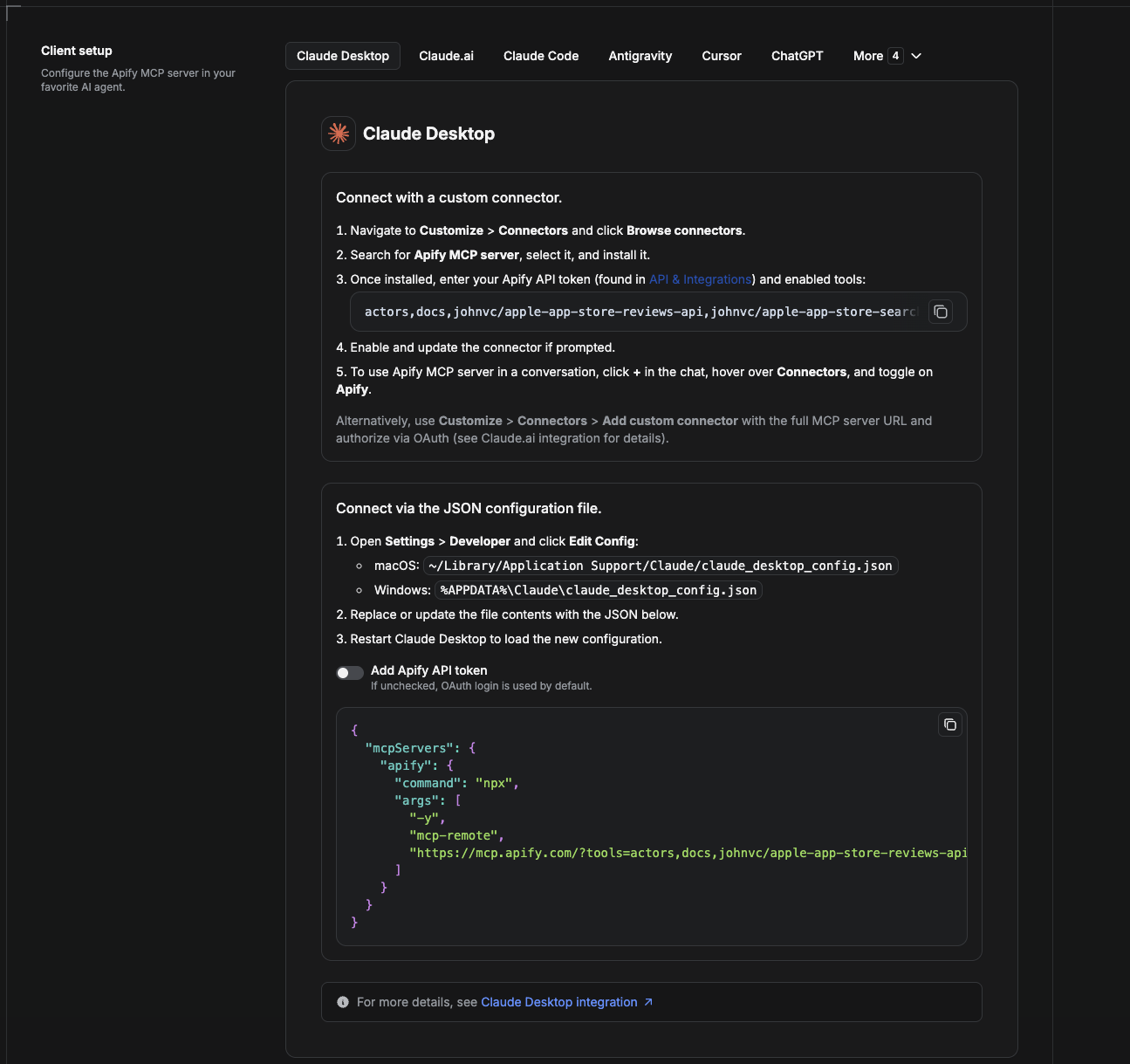
Cowork is the desktop app's automation mode. To give it the Google Play API as a tool, add the Apify MCP server as a connector.
- Open the Claude desktop app and go to Settings -> Connectors (or Settings -> Developer -> Edit Config to edit
claude_desktop_config.jsondirectly).- macOS:
~/Library/Application Support/Claude/claude_desktop_config.json - Windows:
%APPDATA%\Claude\claude_desktop_config.json
- macOS:
- Add the Apify MCP server, preloaded with only this Actor:
{
  "mcpServers": {
    "apify": {
      "command": "npx",
      "args": [
        "-y",
        "mcp-remote",
        "https://mcp.apify.com/?tools=actors,docs,johnvc/google-play-api"
      ]
    }
  }
}- Restart the app. When Cowork first calls the tool, complete the OAuth prompt in your browser, or add your Apify API token in the connector settings to skip OAuth.
- In a Cowork chat, confirm the tool is available and ask it to run the Google Play API.
Download the desktop app and start a free trial: https://claude.ai/referral/uIlpa7nPLg More help: https://docs.apify.com/platform/integrations/claude-desktop
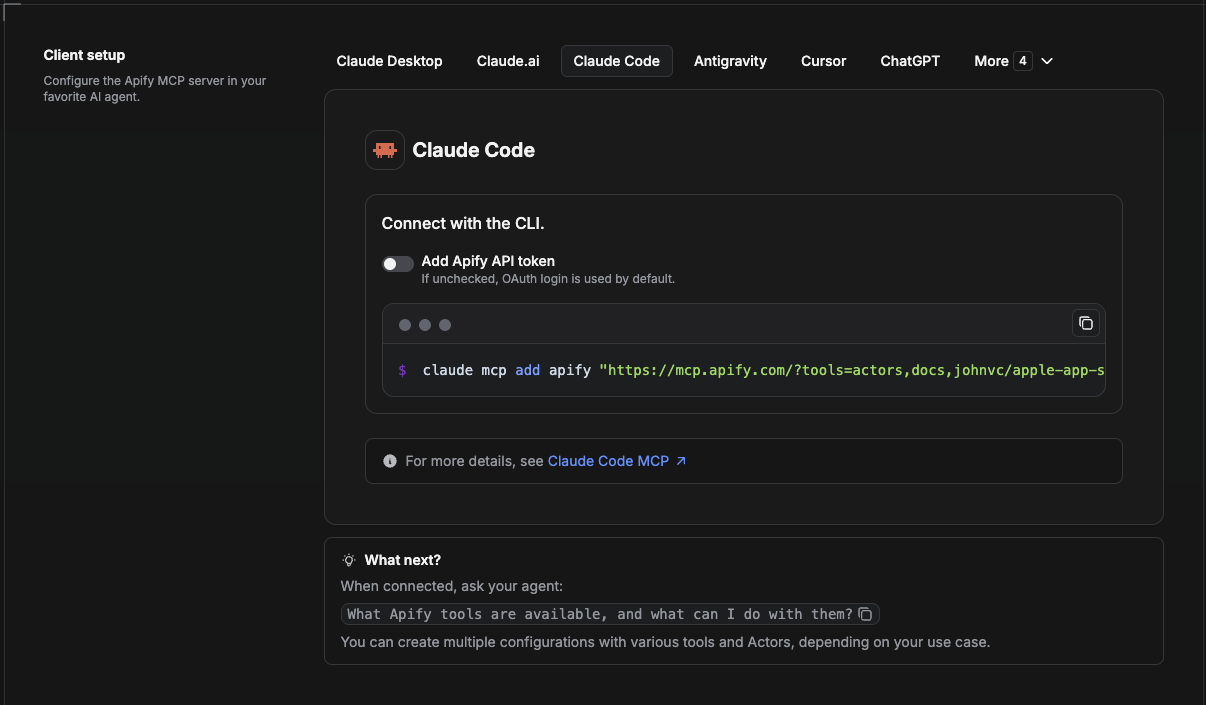
Claude Code is the command-line tool. Add the Actor's MCP server with one command:
claude mcp add --transport http apify \
  "https://mcp.apify.com/?tools=actors,docs,johnvc/google-play-api"
To use a token instead of browser OAuth:
claude mcp add --transport http apify \
  "https://mcp.apify.com/?tools=actors,docs,johnvc/google-play-api" \
  --header "Authorization: Bearer YOUR_APIFY_TOKEN"
Then verify with claude mcp list, or run /mcp inside a session. Ask Claude Code to call the Google Play API.
Try Claude Code free: https://claude.ai/referral/uIlpa7nPLg Claude Code MCP docs: https://code.claude.com/docs/en/mcp
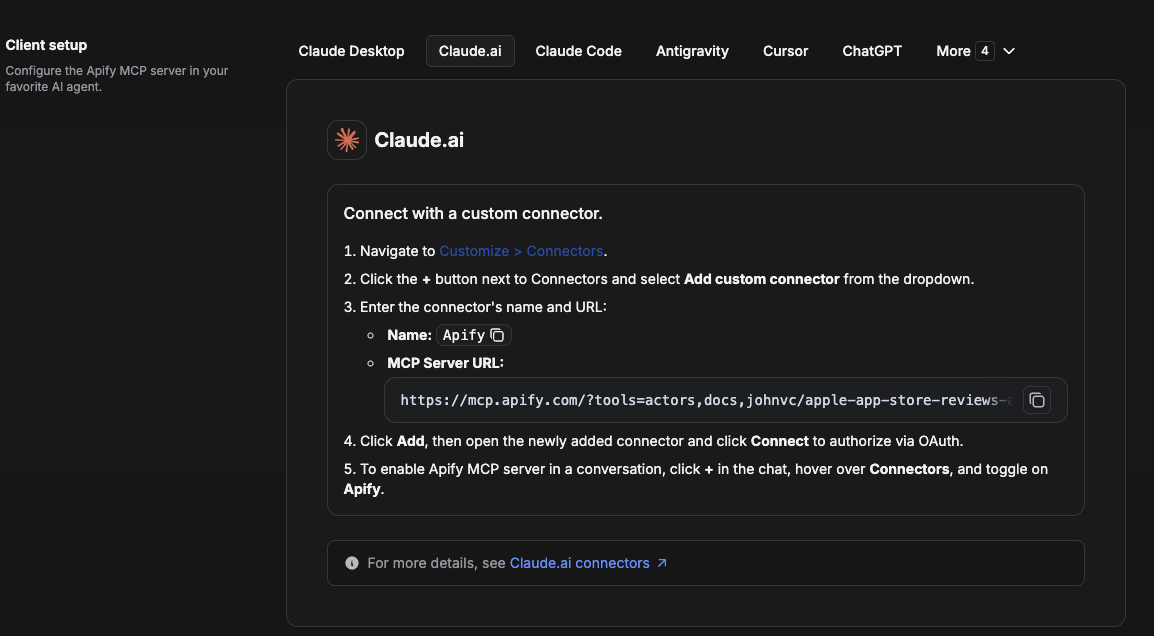
On claude.ai you add Apify as a connector, then enable just this Actor's tool.
- Go to Settings -> Connectors -> Browse connectors and search for Apify MCP server. Install it (enable or update if prompted).
- When connecting, authenticate with your Apify API token, and enable the tool
johnvc/google-play-api. - In any chat, open + -> Connectors and turn on Apify.
- Alternatively, choose Add custom connector and paste the full MCP URL
https://mcp.apify.com/?tools=actors,docs,johnvc/google-play-api, using OAuth when prompted. - Ask Claude to run the Google Play API.
Open Claude on the web: https://claude.ai
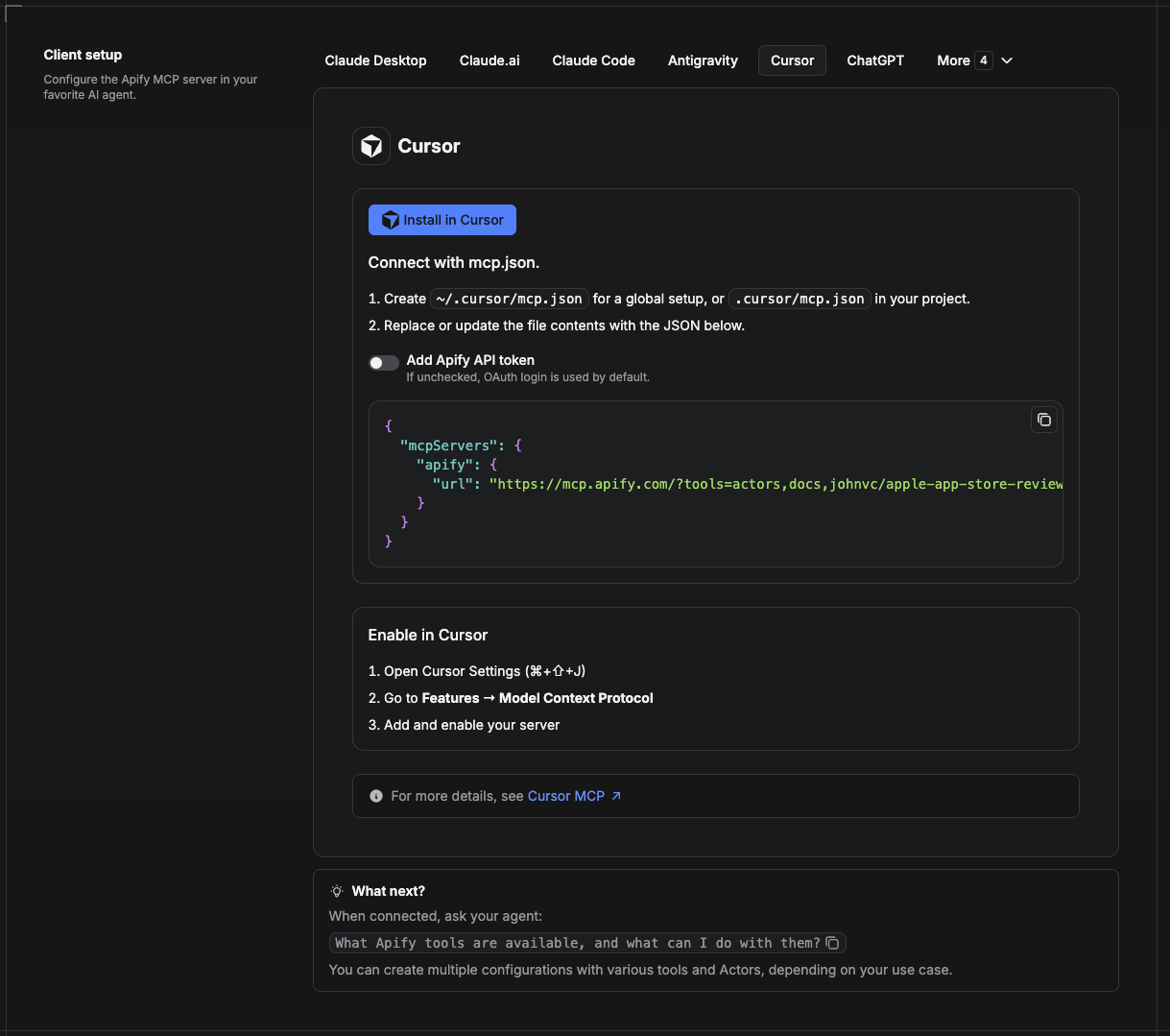
Cursor reads MCP servers from a project file at .cursor/mcp.json.
- In your project, create
.cursor/mcp.json:
{
  "mcpServers": {
    "apify": {
      "url": "https://mcp.apify.com/?tools=actors,docs,johnvc/google-play-api"
    }
  }
}- If you prefer token auth over browser OAuth, add a header:
{
  "mcpServers": {
    "apify": {
      "url": "https://mcp.apify.com/?tools=actors,docs,johnvc/google-play-api",
      "headers": { "Authorization": "Bearer YOUR_APIFY_TOKEN" }
    }
  }
}- Open Cursor -> Settings -> MCP and confirm the apify server is connected (green dot).
- In Composer or Chat, ask Cursor to call the Google Play API.
New to Cursor? Get it here: https://cursor.com/referral?code=XQP4VBLI3NNX
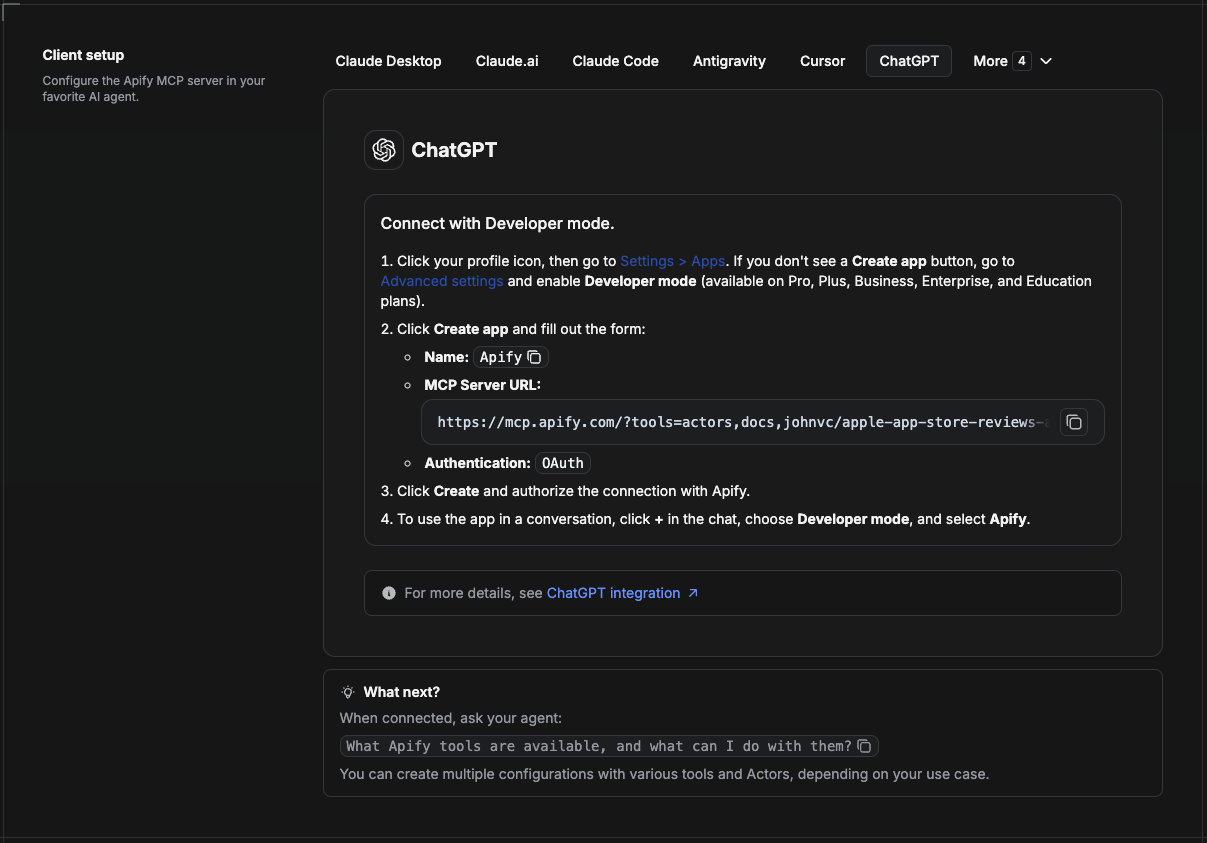
ChatGPT connects to the Apify MCP server through Developer mode (available on ChatGPT Pro, Plus, Business, Enterprise, and Education plans).
- Click your profile icon, then go to Settings > Apps. If you do not see a Create app button, open Advanced settings and enable Developer mode.
- Click Create app and fill out the form:
- Name: Apify
- MCP Server URL:
https://mcp.apify.com/?tools=actors,docs,johnvc/google-play-api - Authentication: OAuth
- Click Create and authorize the connection with Apify.
- To use the app in a conversation, click + in the chat, choose Developer mode, and select Apify.
More help: https://docs.apify.com/platform/integrations/mcp
Made with care by johnvc on Apify. This example repo is part of Alpha OSINT, toolset of financial and operations data sources and APIs.
Last Updated: 2026.08.06