Terminal controller for KingSmith WalkingPad — BLE, cypherpunk green on black.
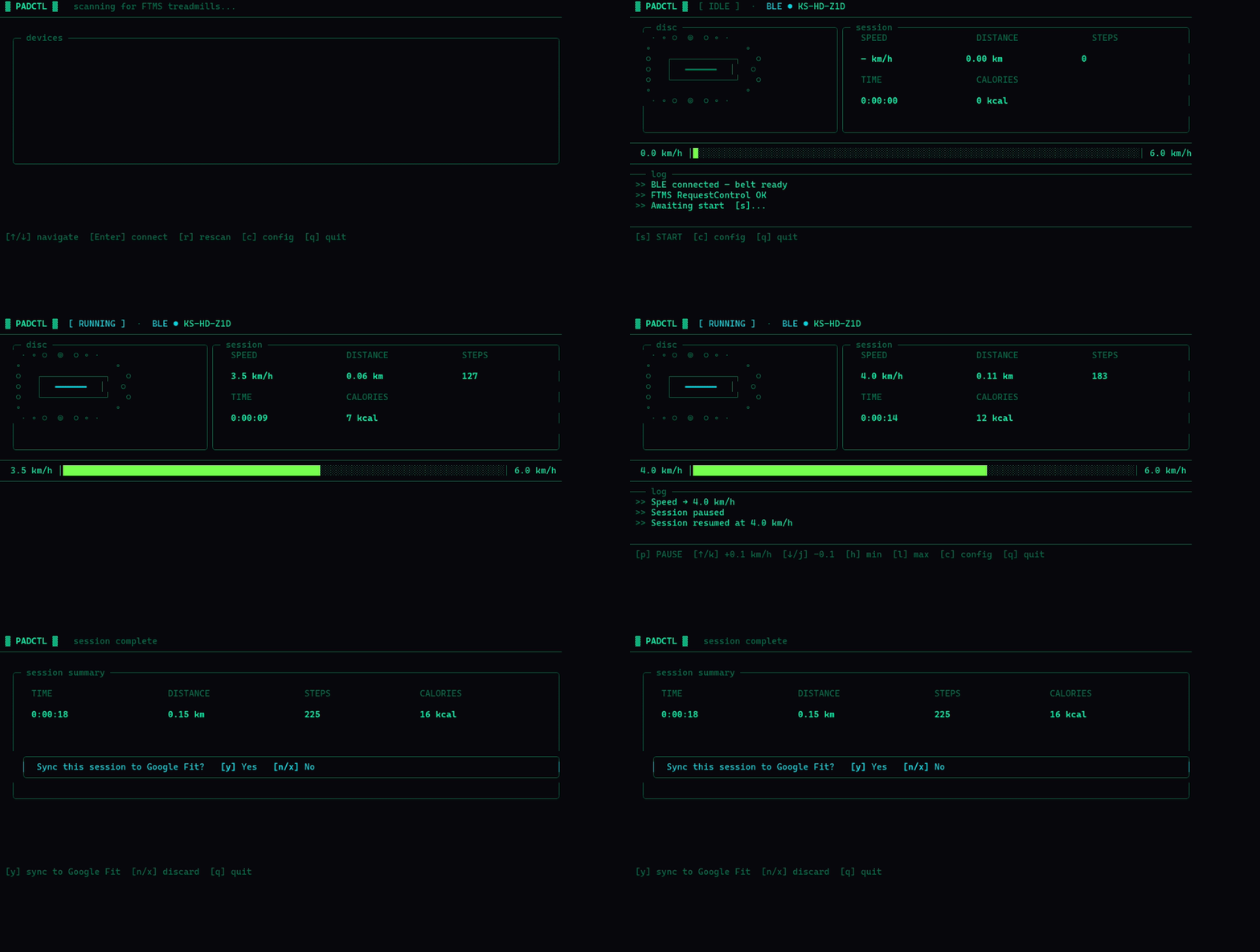



padctl is a single binary that finds your WalkingPad over Bluetooth, lets you start/pause/resume walks, watch live stats, and sync sessions to Google Fit — all from the terminal.
- Auto-connect by name — scans for your pad on startup, reconnects after BLE address rotation
- Full FTMS protocol — works with any treadmill advertising the Fitness Machine Service (UUID
0x1826) - Session state machine — clean Start → Pause → Resume → End transitions, stats accumulate across pauses
- Live stats — speed, distance, steps, time, calories updated on every BLE notification
- Double-tap speed control — single tap ±0.1 km/h, double-tap within 300 ms jumps ±0.5 km/h
- Google Fit sync — browser-based OAuth on first use, refresh token persisted for subsequent syncs
- Persistent config —
padctl.tomlin your working directory, device address auto-updated on reconnect - Debug logging —
--debugflag writes structured logs to stderr, TUI stays on stdout
Verified on Kingfisher Z1 (KS-HD-Z1D).
Any treadmill that advertises the FTMS service (0x1826) with:
- Treadmill Data characteristic
0x2ACD(notify) - Control Point characteristic
0x2AD9(write + indicate)
should work. The Kingfisher Z1 also exposes proprietary KingSmith characteristics (0xfff1 / 0xfff2) for step count — padctl uses them when present.
uvx padctlRequires uv. Works on macOS and Linux out of the box.
pip install padctl
padctlBlueZ and group membership are required for BLE access:
sudo apt install bluez
sudo usermod -aG bluetooth $USER
# log out and back in for the group to take effect
macOS — CoreBluetooth is available out of the box. No extra steps.
Requires Rust 1.70+.
git clone https://github.com/jrosskopf/padctl
cd padctl
cargo build --release
./target/release/padctl- Power on your WalkingPad
- Run
padctl— it scans and auto-connects by device name - Press
sto start a session ↑/↓to adjust speed (double-tap for ±0.5 km/h jumps)- Press
pto pause,rto resume,xto end the session
On first run with a new device: navigate the scan list with ↑/↓, press Enter to connect. The device address is saved to padctl.toml for automatic reconnection next time.
| Key | Action |
|---|---|
↑ / k |
Cursor up |
↓ / j |
Cursor down |
Enter |
Connect to selected device |
r |
Rescan |
c |
Open config dialog |
q |
Quit |
| Key | Action |
|---|---|
s |
Start (when idle) |
p |
Pause (when running) |
r |
Resume (when paused) |
x |
End session (when paused) |
↑ / k |
Speed +0.1 km/h |
↓ / j |
Speed −0.1 km/h |
↑↑ |
Speed +0.5 km/h (double-tap within 300 ms) |
↓↓ |
Speed −0.5 km/h (double-tap within 300 ms) |
h |
Jump to minimum speed (1.0 km/h) |
l |
Jump to maximum speed (6.0 km/h) |
c |
Config dialog |
q |
Quit |
| Key | Action |
|---|---|
y |
Upload session to Google Fit |
n / x |
Discard without uploading |
q |
Quit |
| Key | Action |
|---|---|
Tab / ↓ |
Next field |
↑ |
Previous field |
Enter |
Activate focused field |
Backspace |
Delete character (text fields) |
Esc |
Close dialog |
padctl [OPTIONS]

Options:
      --device-name <NAME>    Override saved device name
      --device-addr <ADDR>    Connect directly by MAC address (skips scan)
      --scan-timeout <SECS>   BLE scan timeout in seconds [default: 10]
      --debug                 Write debug log to stderr
  -h, --help                  Print help
Capture debug output while TUI runs:
padctl --debug 2>padctl-debug.log
tail -f padctl-debug.log # in a second terminalpadctl.toml is created in your working directory on first connect.
device_addr   = "82:20:00:24:35:49"    # auto-updated after each connect
device_name   = "KS-HD-Z1D"            # name to scan for

# optional Google Fit OAuth credentials
fit_client_id     = ""
fit_client_secret = ""
fit_refresh_token = ""   # set automatically after first browser auth flow
The device address is re-saved every time padctl connects, so BLE address rotation (common on Kingfisher Z1 after power cycle) is handled transparently — reconnection falls back to name matching.
Override at runtime without editing the file:
padctl --device-name "WalkingPad"
padctl --device-addr AA:BB:CC:DD:EE:FF- Go to Google Cloud Console → APIs & Services → Credentials
- Create an OAuth 2.0 Client ID (type: Desktop app)
- Add
http://localhostas an authorized redirect URI (any port) - Copy the Client ID and Client Secret
- Press
cinpadctl→ enter Client ID → enter Client Secret → navigate to Save →Enter - After your next session, press
yon the summary screen — a browser tab opens for consent - The refresh token is stored in
padctl.toml; subsequent syncs happen without a browser prompt
Data uploaded per session: steps, distance (meters), calories (kcal), session start/end time, activity type = Treadmill.
Scan finds nothing
- Make sure the WalkingPad is powered on and not connected to another device (phone app, remote)
- Try a longer scan:
padctl --scan-timeout 20 - Verify BlueZ is running:
systemctl status bluetooth
"Permission denied" on Linux
- Add yourself to the
bluetoothgroup:sudo usermod -aG bluetooth $USERthen re-login - Or run once with
sudo padctlto verify BLE access works, then fix the group
Address rotates after power cycle
padctlsaves the device name and re-matches by name — this is handled automatically- If auto-match fails, press
rto rescan; the new address is saved on connect
GATT setup fails or disconnects immediately
- Run with
--debugand checkpadctl-debug.logfor characteristic discovery errors - Some devices require a delay before GATT operations after connect — the log will show where it fails
"RequestControl failed"
- Another client may hold FTMS control; disconnect the official app and retry
src/
├── main.rs          # tokio event loop, keyboard dispatch, BLE session task
├── types.rs         # BleEvent, Cmd, DiscoveredDevice
├── config.rs        # padctl.toml — serde + toml, device address persistence
├── error.rs         # AppError with thiserror
├── logger.rs        # stderr debug logging (--debug flag)
├── fit.rs           # Google Fit: OAuth 2.0 loopback + REST dataset upload
├── ble/
│   ├── protocol.rs  # FTMS + KingSmith proprietary packet codec, 66 unit tests
│   ├── scanner.rs   # btleplug scan, GATT discovery, notification stream
│   └── traits.rs    # WalkingPadBle async trait (enables mocking in tests)
├── session/
│   ├── mod.rs       # state machine: Idle → Running ↔ Paused → Idle
│   └── stats.rs     # cumulative stat accumulator, device counter reset handling
└── ui/
    ├── app.rs       # AppState, AppMode, double-tap timing, animation state
    └── render.rs    # ratatui: animated braille disc, stats panel, speed gauge, log
Key design decisions:
- All I/O on a single tokio runtime; BLE events and key events flow through
mpscchannels - Render is a pure read of
AppState— no locks held during draw - Stats use
saturating_subto survive device counter resets mid-session - OAuth uses a TCP loopback listener on a random port — no external server needed
The demo GIF was recorded with VHS. To regenerate it:
vhs padctl.tapeThe tape file (padctl.tape) and the simulation script (demo/padctl-demo.sh) are both in the repository.
padctl sends anonymous usage telemetry, on by default, using the shared DataZoo schema. It never transmits device names, BLE addresses, Google tokens, or your walking data — enforced by an allow-list of permitted properties and values, with a test that feeds a real device model, a MAC address, an OAuth token and an email through the capture path and asserts none appear.
Turn it off with --no-telemetry, PADCTL_NO_TELEMETRY=1,
DATAZOO_DISABLE_TELEMETRY=1, or DO_NOT_TRACK=1. Full detail in
TELEMETRY.md.
MIT