Perimtr AI is a local-first AI workspace for running open models on your own hardware. It adds a focused chat workspace, model comparison, AI-to-AI conversations, a private document library, and live system visibility.
Project references:
mobile/ is a first-class Flutter app for Android and iOS. It runs phone-sized GGUF models directly on the device, stores chats locally, imports or downloads models without bundling weights, reports real model fit from device memory and free storage, and exposes an optional on-device OpenAI-compatible API.
Mobile can also pair with Perimtr AI Desktop over the local network. Desktop pairing is off by default, exposes only the model API (not the Perimtr AI workspace), and requires the rotating token shown in Agent → Local inference. This lets a phone use a larger llama.cpp or DS4 model on the computer while keeping the distinction between on-device and paired inference explicit.
See mobile/README.md for development and build
instructions. In particular, do not build iOS directly from an ExFAT/FAT USB
drive: mobile/scripts/prepare-ios.sh creates a disposable Mac-local Xcode
workspace at ~/Perimtr AI Mobile Development. The USB/repository source remains
the authoritative copy.
The supported Perimtr AI 0.2 distribution is a portable Apple Silicon macOS folder. It requires no installer, system Node.js installation, package manager, account, or bundled model weights. Windows and Linux launchers remain in source for community development, but they are not validated release targets yet.
Download Perimtr AI-<version>-portable.zip from the repository's GitHub Releases
page and extract it onto the USB drive. GitHub's green Code → Download ZIP
button downloads the development source tree, not the ready-to-run portable
package. The portable archive includes the built interface, verified runtimes,
empty data folders, and portable-layout metadata used by every launcher to
enable removable storage and filesystem checks.
- macOS: run
bash mac.sh. - Windows/Linux: experimental source launchers only; no 0.2 runtime guarantee.
The release marker directs chats, settings, documents, caches, and imported
models to the shared Perimtr AI Data folder. The supported package ships the
Apple Silicon Metal runtime. Windows and Linux payloads are retained only for
future community validation.
For a reliable macOS runtime, format removable media as APFS with a GUID partition map before extracting Perimtr AI. exFAT is compatibility mode rather than the recommended runtime filesystem because it does not preserve native permissions, links, and metadata. FAT32 is unsupported for model storage because it rejects files larger than 4 GB. The launcher detects the filesystem, explains the tradeoff, and continues; Perimtr AI never reformats or repairs a drive.
On macOS, Safari may quarantine executables extracted from a downloaded ZIP.
Run bash allow-macos.sh once from the complete extracted folder; it verifies
every packaged file against SHA256SUMS before clearing quarantine. Then launch
with bash mac.sh.
DS4 is a separate, platform-dependent engine. Its very large DeepSeek packages and disk KV cache are never included. On supported Macs, Perimtr AI can remain on the USB while DS4 storage points to a fast internal SSD selected in Settings.
Perimtr AI is a fork of techjarves/Uncensored-Local-Studio, distributed under the MIT License. The upstream copyright and the repository’s original MIT license are preserved. See CREDITS.md for attribution and included runtime projects.
The original project documentation is retained below for its runtime and setup details.
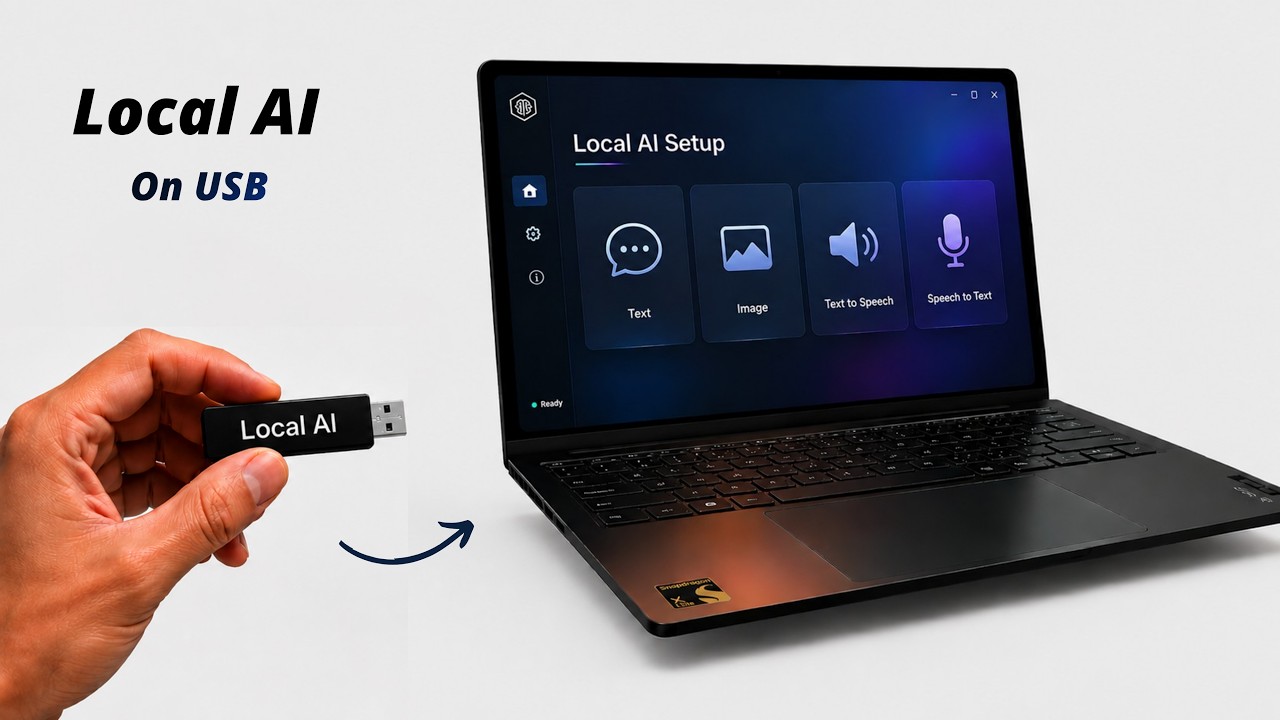
A premium, zero-configuration local AI studio and offline GUI for Stable Diffusion (Image Generation), LLMs (Chat), Whisper (Speech-to-Text), and Kokoro (Text-to-Speech). Powered by hardware-accelerated GPU and NPU execution on Windows, Linux, and macOS.



🎥 Watch the Setup & Demo Video: https://www.youtube.com/watch?v=yeFvP3SWMak
- What is Uncensored AI Studio?
- Key Features
- Workspace & Engine Architecture
- Supported Models
- Folder Architecture
- Getting Started
- Hardware Compatibility & Acceleration
- Troubleshooting & FAQ
- Building From Source
- Licensing
Uncensored AI Studio is a completely offline, zero-setup, self-contained AI studio for Windows, Linux, and macOS. Unlike cloud-based AI systems, it runs entirely on your own hardware with no censorship, tracking, subscriptions, or login requirements.
It unifies four major local AI capabilities into one high-performance desktop interface:
- 🎨 Image Generation (Stable Diffusion): Generate and edit high-quality images offline using
.safetensors,.gguf, or.ckptmodel weights. - 💬 Text Chat (LLMs): Converse privately with open-source language models (GGUF format) powered by official, high-performance
llama.cppbackends. - 🎙️ Speech-to-Text (Whisper): Transcribe voice recordings and speech to text in real-time with an integrated
whisper.cppengine. - 🗣️ Text-to-Speech (Kokoro TTS): Convert text outputs into highly natural, lifelike vocal audio offline using the
Kokoro-82MONNX model.
- 100% Offline & Private: Run inferences locally. No internet, telemetry, cloud logging, or API keys required.
- Zero-Install Portability: The application runtime and GPU backends are self-contained. Model weights are always added locally by the user and are never included with a Perimtr AI release.
- Auto-Configured Acceleration: Auto-detects hardware specs to load CUDA (Nvidia), ROCm (AMD), Vulkan (Intel/AMD/NVIDIA), Metal (macOS), or OpenVINO (Intel NPU) backends.
- Integrated Model Manager: Paste Hugging Face URLs to download weights directly, or drag-and-drop local weights to import them.
- Live Performance Monitor: Track CPU, RAM, GPU, and VRAM utilization in real-time directly inside the web UI.
- Local Output Gallery: Saves generated images side-by-side with prompt parameters and metadata JSON files.
To avoid exhausting system RAM or VRAM, text and image engines are mutually exclusive by default. You can switch between workspaces inside the UI:
- Image Generation Workspace: Uses a dedicated
stable-diffusion.cppbackend node. Model weights are stored inapp/models/. - Text Chat Workspace: Uses a portable
llama.cppserver backend. General GGUF chat models default toapp/llm-models/; the Models workspace can instead use an internal SSD or a user-selected folder. llama.cpp keeps its active KV cache in memory. - DeepSeek V4 Workspace: Uses the DS4 Metal engine, not
llama.cpp. Compatible Flash and PRO packages are stored separately inapp/ds4-models/and must be supplied by the user.
Perimtr AI can run from a USB drive. In Models → DeepSeek (DS4), choose one of two explicit DS4 storage policies:
- Portable app drive: model packages and the DS4 disk KV cache live beside Perimtr AI, so the full setup moves with the drive. Fast external NVMe storage is strongly recommended for DS4 streaming.
- Internal SSD (recommended): Perimtr AI remains portable, while only the large DeepSeek packages and their DS4 KV cache live in
~/Library/Application Support/Perimtr AI/ds4/. This is the recommended choice for Flash and especially PRO.
For a different arrangement, the same panel includes native Choose model folder and Choose KV cache folder controls. This avoids requiring users to find hidden system folders or type paths manually.
Changing this setting never copies, moves, or deletes any model package. Import or place the desired package in the active location after switching.
PDF, Word, RTF, text, and code files can be attached directly to a chat or dropped over the chat surface. Text extraction happens locally and the temporary attachment is not added to the document library. Scanned PDFs can use a locally installed OcrMyPDF/Tesseract runtime. OCR is optional, stays entirely on-device, and is not bundled in standard Perimtr AI releases. See RELEASE.md before distributing a package.
Perimtr AI can optionally download the MIT-licensed llmfit binary for the active
platform. Models → Text Models → Model advisor runs its hardware and model
fit analysis locally. The advisor is never required for chat, and it is not
included in a standard release; Perimtr AI downloads a pinned release asset and
checks its SHA-256 digest only after the user chooses Install advisor.
Agent is a built-in Hermes Agent workspace. It does not replace Chat and it
does not add model weights. Initial setup downloads a pinned, verified
Local-Hermes-Portable launcher on request; the first launch then downloads the
portable Hermes/Python/Node runtime into Perimtr AI Data/app/runtimes/hermes/.
Hermes uses the currently loaded Perimtr AI text model through the local
OpenAI-compatible endpoint at http://127.0.0.1:4891/v1.
Agent Mode requires a model loaded with at least 65,536 tokens of context. Perimtr AI can restart the active model with that context and Q8 KV cache from the Agent workspace. The safe default keeps dangerous-command approval manual, stages memory and skill writes for review, and excludes web/search/browser tools. Open Desktop launches the native Hermes interface; Open CLI launches its terminal UI. Both share the same model, workspace, sessions, portable profile, and permissions. Enabling Online tools is explicit and means the agent may use the internet. The selected working folder is the agent's starting directory, not an OS-level sandbox; close Desktop or press Control+C in the CLI to stop it. Perimtr AI's launch shim lets the pinned portable wrapper perform setup and recovery, then starts Hermes from the selected folder instead of the wrapper's source tree. The Desktop Electron profile is redirected into Perimtr AI's data directory instead of the host user's Application Support or AppData folder.
The first CLI setup downloads roughly 600 MB. The first Desktop launch may add
approximately 500 MB of Electron dependencies. Those downloads require internet
once per operating-system/CPU runtime; subsequent launches can operate offline.
On macOS, Perimtr AI stages the Electron source, dependencies, and build output in
the disposable internal-disk folder ~/Perimtr AI Hermes Development. This avoids
the severe small-file slowdown and AppleDouble clutter caused by building
node_modules directly on an ExFAT USB drive. Agent settings, sessions, memory,
skills, and the selected workspace remain on the USB. The build location can be
changed with PERIMTR_AI_HERMES_BUILD_DIR; deleting it only forces a Desktop rebuild.
On macOS, the generated Agent launchers also discard ._* AppleDouble metadata
sidecars from the downloaded Hermes source and portable skill folders. These
ExFAT bookkeeping files are not user content and otherwise look like binary
Python or Markdown to the Hermes CLI. The full cleanup runs once per downloaded
Hermes source version; later launches perform only a fast tool-directory check.
The same cleanup runs on Windows and Linux because metadata written by macOS
remains visible when the shared USB is moved to another operating system.
The same local API can be used by another OpenAI-compatible client. It binds
only to 127.0.0.1 by default, lists only the active model, and returns a clear
503 error when no text model is loaded. Allow paired mobile devices may
explicitly expose that model API on the local network; remote requests require
the generated pairing token, while Hermes continues to use localhost without a
token. The main Perimtr AI web interface remains bound to localhost.
Perimtr AI Chat can also connect to a separately running Ollama, MLX-LM, llama.cpp,
or LM Studio service through the environment-configured local provider layer.
The bundled llama.cpp/DS4 runtime remains the default, external services retain
control of their own model lifecycle, and provider health is visible at
/api/llm/providers. See LOCAL_LLM_PROVIDERS.md for
the safe setup and LaCie storage examples.
- Speech Worker (Whisper): Runs a localized
whisper-cliprocess to convert your vocal input to text. - Audio Output (Kokoro TTS): Utilizes
kokoro-jslocally on the server side to read responses in natural voices.
The app is designed around single-file local models that can be loaded directly by the bundled backend engines.
| Model type | Supported | Put files in | Notes |
|---|---|---|---|
| Stable Diffusion 1.5 checkpoints | Yes | app/models/ |
Best compatibility. Use .safetensors or .ckpt files. |
| SDXL checkpoints | Yes | app/models/ |
Supported as single-file checkpoints. Requires more RAM/VRAM than SD 1.5. |
| Single-file SD/SDXL GGUF checkpoints | Limited | app/models/ |
Only complete single-file checkpoints are supported. |
| OpenVINO image model folders | Intel NPU only | app/openvino-models/ |
Download from the Model Manager after running the OpenVINO setup. |
| CoreML image models | Apple Silicon only | app/models/ |
Requires macOS on Apple Silicon and the CoreML setup path. |
| Flux, HiDream, Hunyuan, Wan, Qwen Image, Z-Image workflows | No | N/A | These usually require separate diffusion, VAE, and text encoder files and are not one-click checkpoint loads in this app. |
| LoRA, ControlNet, VAE-only, text-encoder-only, or diffusion-only files | No | N/A | Companion files are not loaded as standalone image models. |
Known-good image models available from the Model Manager:
| Name | Filename | Type | Approx. size | Recommended use |
|---|---|---|---|---|
| Juggernaut XL v9 Lightning | Juggernaut_RunDiffusionPhoto2_Lightning_4Steps.safetensors |
SDXL | 6.6 GB | High-quality photorealism on mid/high tier machines. |
| DreamShaper XL Lightning | DreamShaperXL_Lightning.safetensors |
SDXL | 6.6 GB | General SDXL images, fantasy, renders, and illustration. |
| DreamShaper 8 | DreamShaper_8_pruned.safetensors |
SD 1.5 | 2.1 GB | Faster, lower-memory image generation. |
| CyberRealistic V8 | CyberRealistic_V8_FP16.safetensors |
SD 1.5 | 2.0 GB | Realistic SD 1.5 images and lower-memory systems. |
| Rev Animated | rev-animated-v1-2-2.safetensors |
SD 1.5 | 2.0 GB | Stylized/anime SD 1.5 images. |
| LCM DreamShaper OpenVINO | OpenVINO/LCM_Dreamshaper_v7-fp16-ov |
OpenVINO | 2.7 GB | Intel Core Ultra NPU test model. |
| Workspace | Supported model files | Put files in | Notes |
|---|---|---|---|
| Text Models (llama.cpp) | General .gguf models |
app/llm-models/ |
Use single-file GGUF chat/instruct models. Vision models may also require a matching mmproj file. |
| DeepSeek (DS4) | Compatible DeepSeek V4 Flash/PRO .gguf packages |
app/ds4-models/ |
Separate DS4 Metal runtime; these very large packages are never bundled with Perimtr AI. |
| Speech-to-Text | whisper.cpp .bin models |
app/speech-models/ |
Use Whisper GGML/whisper.cpp model files. |
| Text-to-Speech | Kokoro .json manifests and model assets |
app/tts-models/ / app/tts-runtime/ |
Use the built-in Kokoro setup and Model Manager entries. |
Note
Linux release binaries are built for Ubuntu 24.04-era systems and require glibc 2.38+ plus GLIBCXX_3.4.32+. On older Ubuntu/Debian VMs, a model such as CyberRealistic may be valid but the backend can still fail before loading it. Upgrade the VM OS or build the backend from source.
Perimtr AI/
├── windows.bat                # Windows Launcher (Double-click entrypoint)
├── linux.sh                   # Linux Launcher (Terminal entrypoint)
├── mac.sh                     # macOS Launcher (Terminal entrypoint)
├── LICENSE                    # MIT Open Source License
├── .gitignore                 # Excludes models and output images from version control
├── README.md                  # Detailed system documentation
├── scripts/
│   ├── setup/                 # Platform setup and backend installers
│   ├── reset/                 # Clean install & environment repair
│   ├── server/                # UI web server and backend lifecycle manager
│   ├── workers/               # Local worker processes
│   ├── build/                 # Optional source build helpers
│   └── config/                # Runtime configuration catalogs
└── app/
    ├── frontend/              # UI source code (Vite + React)
    ├── models/                # Place image weights here (.safetensors, .gguf, .ckpt)
    ├── llm-models/            # Place general llama.cpp GGUF weights here
    ├── ds4-models/            # Place DeepSeek V4 Flash/PRO DS4 packages here (not bundled)
    └── outputs/               # Saved images and parameters metadata
Ensure you have a modern web browser installed. Follow the quick guide below for your platform:
- Launch: Double-click
windows.bat.[!NOTE] On the first run, the script will automatically download a portable Node.js runtime and configure pre-compiled GPU/CPU backend binaries.
- Add Models: Drop
.safetensors,.gguf, or.ckptweights intoapp/models/(or download them via the Model Manager tab in the UI). - Generate: Open
http://localhost:1420in your browser, select your model, and write a prompt.
- Make executable: Open a terminal in the project folder and make the script executable:
chmod +x linux.sh
- Launch: Run
./linux.sh.- NVIDIA GPU Users: You will be prompted to set up the high-performance CUDA backend (downloads prebuilt or automatically compiles from source as a fallback).
- AMD Radeon Performance: Run with
./linux.sh --max-perfto add the ROCm backend (~1.3 GB download). - Intel Core Ultra NPU: Run with
./linux.sh --setup-openvinoto configure Intel NPU support (requires Intel Linux NPU driver).
- Add Models: Drop your weights into
app/models/or download them via the Model Manager tab. - Generate: Open
http://localhost:1420in your browser.
- Make executable: Open a terminal in the project folder and make the script executable:
chmod +x mac.sh
- Launch: Run
./mac.sh.[!IMPORTANT] The prebuilt macOS backend is optimized for Apple Silicon (M1 or newer) and uses Metal GPU acceleration. (macOS Intel hardware is completely unsupported).
- Add Models: Drop your weights into
app/models/or download them via the Model Manager tab. - Generate: Open
http://localhost:1420in your browser.
| GPU Vendor | Tech | Status | Notes |
|---|---|---|---|
| Nvidia | CUDA | ✅ Native | Maps sd-cuda.exe with Nvidia SDK 12 optimizations. |
| AMD Radeon | Vulkan | ✅ Native | Maps sd-vulkan.exe with Vulkan API acceleration. |
| Intel Arc | Vulkan | ✅ Native | Maps sd-vulkan.exe for Intel hardware. |
| Integrated / None | CPU | Runs on logical CPU threads (slow). |
| GPU Vendor | Primary | Fallback | Notes |
|---|---|---|---|
| NVIDIA | CUDA / Vulkan | Vulkan / CPU | Auto-detects NVIDIA. Prompt-driven CUDA setup downloads prebuilt or compiles from source. Falls back to Vulkan for GTX. |
| AMD Radeon | ROCm | Vulkan | ROCm provides best AMD performance when host ROCm drivers are available. |
| Intel Arc / integrated | Vulkan | CPU | Cross-vendor Vulkan support. |
| Intel Core Ultra NPU | OpenVINO NPU | CPU | Requires the Intel Linux NPU driver, kernel 6.6+, Python 3, and ./linux.sh --setup-openvino. |
| Integrated / None | CPU | — | Runs on logical CPU threads (slow). |
| Hardware | Primary | Fallback | Notes |
|---|---|---|---|
| Apple Silicon (M1 or newer) | Metal | CPU | Uses the official Darwin arm64 stable-diffusion.cpp backend. |
Important
System Requirements & Notes:
- 64-bit Windows 10 or Windows 11 is required for the portable Node.js 22 runtime used by the Windows launcher.
- glibc 2.38 or newer is required for the prebuilt Linux backends (Ubuntu 24.04, Fedora 40+, etc.). The setup script will warn you if your glibc is older.
- Linux OpenVINO NPU: Intel Core Ultra, x86_64 Linux, kernel 6.6+, a working
/dev/accel/accel0device, Python 3 withvenv, and the Intel Linux NPU driver are required.
Reset Environment: If a build fails or you want to clear dependencies
Run scripts/reset/reset.ps1 (Windows) or scripts/reset/reset.sh (Linux/macOS). This will clear temporary compilation and package caches to repair your environment. (Note: This preserves your model weights and generated output images).
Linux backends fail to start with GLIBC_2.38 not found
The prebuilt binaries require glibc 2.38+ (e.g. Ubuntu 24.04). If your distribution uses an older glibc version, you can upgrade your operating system or compile the backend from source (see the Building From Source guide below).
Port Conflicts: Default port address already busy
The web user interface runs on port 1420 by default. The GPU backend manager attempts to bind to port 8080 first, then automatically detects and falls back to a free system port if 8080 is already occupied.
Linux ROCm not loading for AMD Radeon GPUs
Ensure your AMD GPU hardware and host kernel are fully compatible with ROCm 7.13. If ROCm fails to initialize correctly, the application will automatically fall back to Vulkan acceleration.
Linux uses the integrated GPU instead of the discrete GPU
On dual-GPU Linux systems, Vulkan device order can put the integrated Intel GPU at vulkan0 and the discrete AMD/NVIDIA GPU at vulkan1. The launcher now tries to prefer a discrete Vulkan device when vulkaninfo --summary is available. To force a device manually, start the app with SD_VULKAN_DEVICE=vulkan1 ./linux.sh or use another index such as vulkan0/vulkan2.
Windows exits with code 3221225781 (0xC0000135)
This code means Windows could not locate a required backend DLL:
- For AMD/Intel Vulkan: Update your GPU driver to one with full Vulkan runtime support, then rerun the setup script to restore
app/backend/win/vulkan/. - For NVIDIA CUDA: Install or update your NVIDIA graphics driver, then rerun the setup script to restore the CUDA runtime DLLs.
Generation shows "server is not responding or crashed"
This indicates that the local backend engine process terminated. Check your launch terminal (where you executed windows.bat, ./linux.sh, or ./mac.sh) for the exact console error. Common causes include glibc version mismatches, missing Vulkan drivers, or system out-of-memory (OOM) issues.
The setup script (scripts/setup/setup.sh) now automates building and setting up the CUDA backend from source when selected. If you want to manually build all backends (CPU, Vulkan, and CUDA) at once, you can run the included scripts/build/build_from_source.sh script.
For macOS, the included scripts/build/build_from_source.sh builds the Metal backend and copies it to app/backend/mac/sd.
git,cmake,make(orninja), and a C++17 compiler (g++/clang++).- For CUDA: the NVIDIA CUDA toolkit (
nvcc) must be on yourPATH. - For Vulkan: the Vulkan SDK / loader and a compatible driver.
- For ROCm: AMD ROCm development libraries.
- For macOS Metal: Apple Command Line Tools or Xcode.
# 1. Clone upstream
git clone https://github.com/leejet/stable-diffusion.cpp.git
cd stable-diffusion.cpp
mkdir build && cd build

# 2. Configure for your backend (pick ONE)
# CPU only
cmake .. -DSD_BUILD_SHARED_LIBS=ON -DCMAKE_BUILD_TYPE=Release

# CUDA
cmake .. -DSD_CUDA=ON -DSD_BUILD_SHARED_LIBS=ON -DCMAKE_BUILD_TYPE=Release

# Vulkan
cmake .. -DSD_VULKAN=ON -DSD_BUILD_SHARED_LIBS=ON -DCMAKE_BUILD_TYPE=Release

# ROCm
cmake .. -DSD_HIPBLAS=ON -DSD_BUILD_SHARED_LIBS=ON -DCMAKE_BUILD_TYPE=Release

# macOS Metal
cmake .. -DSD_METAL=ON -DSD_BUILD_SHARED_LIBS=ON -DCMAKE_BUILD_TYPE=Release

# 3. Build
cmake --build . --config Release -j$(getconf _NPROCESSORS_ONLN 2>/dev/null || sysctl -n hw.ncpu)

# 4. Copy the binaries into this project
cp bin/sd* /path/to/Uncensored-AI-Studio/app/backend/linux/<backend>/
After copying, rename the server binary to match what scripts/server/serve.cjs expects:
- Vulkan:
sd→sd-vulkan - ROCm:
sd→sd-rocm
Then restart the app with ./linux.sh (Linux) or ./mac.sh (macOS).
This project is licensed under the MIT License - see the LICENSE file. Bundles stable-diffusion.cpp (MIT License). Model weights are subject to their respective creators' licenses.