
Run Claude Code, Codex, OpenCode, Hermes, and shell jobs in durable tmux panes or managed terminals, then control the same sessions from your terminal, desktop, web, or phone.

Website · Documentation · Tmux architecture
| Platform | Availability |
|---|---|
| macOS | Daemon and CLI: brew install --cask tonisives/tap/clawtab. Optional desktop app: brew install --cask tonisives/tap/clawtab-desktop |
| Linux | Local daemon or remote agent host: x86_64 / ARM64 |
| Windows | Native host and CLI: build from source or use the Managed terminals CI artifact. No WSL required. |
| iPhone / iPad | App Store |
| Android | Google Play build workflow added; store release pending signing and submission |
| Web | Remote |
See platform installation and release builds.
ClawTab keeps agents in real tmux panes instead of hiding them inside a desktop-only runtime. Your process, working directory, scrollback, and terminal state survive app restarts and remain available through normal tmux commands.
A headless daemon adds the agent-aware layer: schedules, session metadata, task titles, question detection, auto-yes, notifications, and Remote connections. The terminal, desktop app, and Remote clients all connect to the same pane IDs, so changing interfaces does not restart or duplicate an agent.
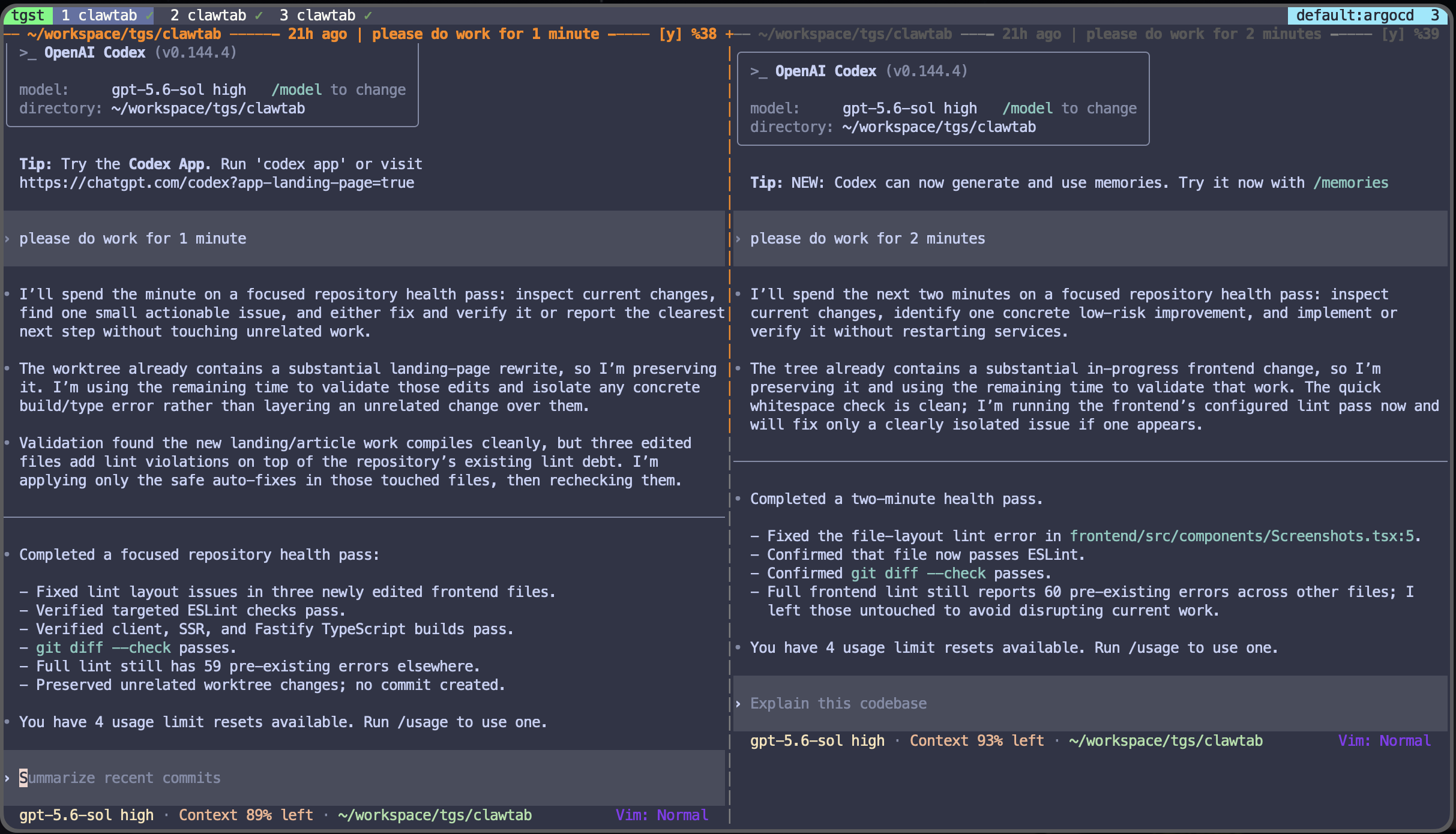
Two Codex agents work side by side in the same tmux window.
- Durable tmux sessions - Agents remain ordinary, inspectable tmux panes with their real terminal state intact.
- Headless control plane - The launchd daemon keeps jobs, monitoring, relay connections, and auto-yes running without the desktop window.
- Agent-aware tmux UI - See working, waiting, and idle states; replace generic process names with useful task titles.
- Terminal-native controls - Use
cwtctl,cwttui, or the tmux popup to manage agents and scheduled jobs. - Session continuity - Open the same pane in tmux, the desktop app, web Remote, or mobile without starting a new process.
- Multiple providers - Run Claude Code, Codex, OpenCode, Antigravity, Hermes, and normal shells in one workspace.
- Scheduled jobs - Create prompt, project-folder, and binary jobs with cron expressions or calendar-anchored weekly recurrences.
- Remote answers - View live output and answer agent questions from web, mobile, push notifications, or Telegram.
- Secrets management - Inject selected macOS Keychain or gopass secrets into jobs without storing them in project files.
- Optional visual workspace - Arrange split panes and use the agent Mind Map in the Tauri desktop app.
Hermes supports live terminal control, session information, hook-driven activity, approvals, and scheduled launches. See Hermes setup and validation.
ClawTab is built with Rust and Tauri. The desktop bundle is under 20 MB, while the daemon handles background work independently of the GUI.
The bundled tmux plugin adds agent status, task-based pane names, auto-yes controls, session forking, skill search, secret injection, and a terminal sidebar.
Window tabs show a colored age before the agent status: jn under a minute, then 13m, 2h, or 3d since the latest agent action in that window. Ages are green under an hour, amber under a day, and red from one day onward. Agent events and new output update the timestamp; focus changes, spinner repaints, and layout changes do not. Windows without a known agent action omit the age.
The daemon publishes agent activity to tmux without replacing your theme. Working windows get a cyan activity marker, agents asking for input get a yellow attention marker, and present-but-idle agents get a green check.
ClawTab picks up generated session names from Codex, Claude Code, OpenCode, and Hermes as they become available, usually on the next five-second scan. The name appears in ClawTab and on the top pane border. A window with exactly one agent also gets that name if tmux's automatic naming is enabled. Windows with multiple agents keep their window name. Explicitly renaming a window stops ClawTab from renaming it again; existing named windows and custom pane names are preserved.
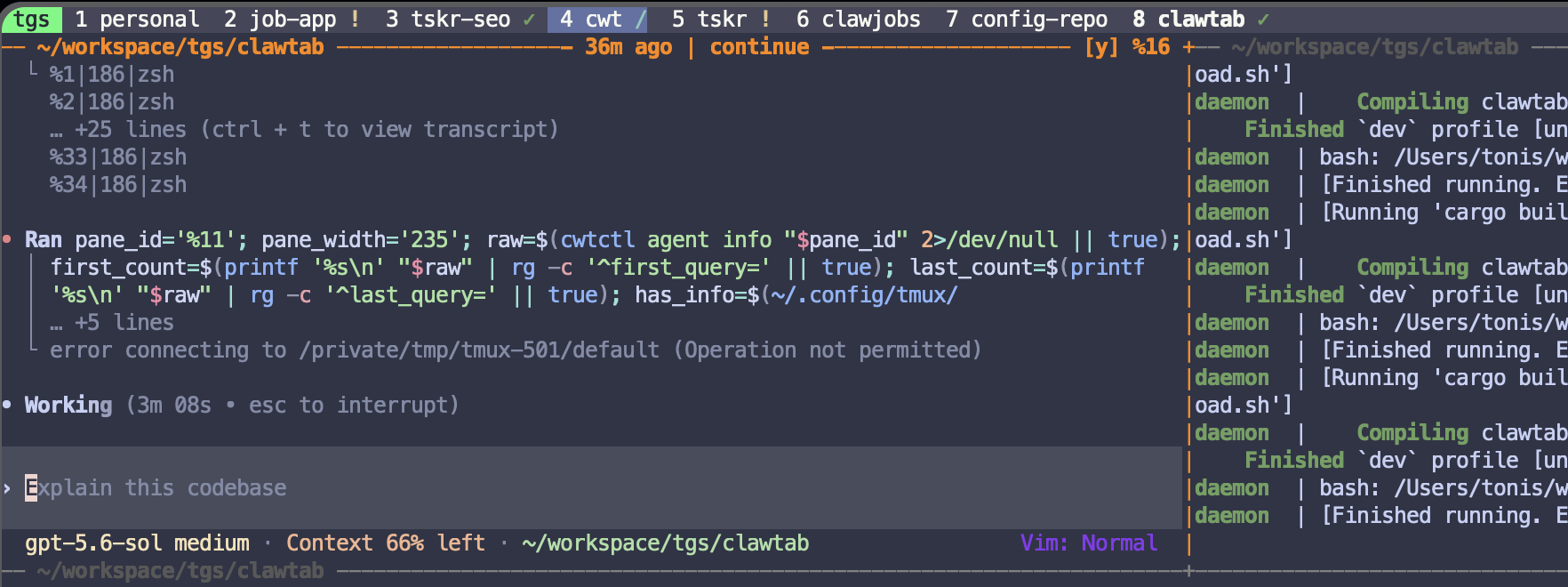
Activity indicators make working, waiting, and idle agent windows visible before you enter them.
The status bar uses a cyan * for working agents, a yellow ! for questions, and an orange ! for alerts. Alerts detect capacity, overload, rate limit, quota, authentication, and connection failures in the latest terminal error block. They clear when work resumes or newer output replaces the error. Entering a window focuses panes with questions or alerts. Process cards label alerts and show the error text in their status tooltip.
Agent alerts also appear in desktop and remote notification cards, with an action to open the affected session. New alerts send an iOS push when remote notifications are enabled. Repeated snapshots update the same card; recovery or session exit resolves it.
Add the plugin to .tmux.conf:
run-shell /path/to/clawtab/tmux-clawtab/clawtab.tmuxThen reload tmux:
tmux source-file ~/.tmux.conf| Key | Action |
|---|---|
prefix + E |
Open a floating ClawTab menu over the current pane |
prefix + y |
Toggle auto-yes for the current agent pane |
prefix + o |
Open the current pane in the ClawTab desktop app |
prefix + s |
Search skills and insert a skill command |
prefix + f |
Fork the current agent session into a new pane |
prefix + ` |
Open the ClawTab terminal sidebar |
The floating menu has Home, Plugins, Secrets, and Skills tabs. Plugins lists matching actions from installed local plugins for the current pane and runs the selected action with Enter. ClawTab installs no agent actions by default. It also shows provider usage, session start time, first and latest queries, session ID, and restore context. Each agent pane can have its own floating menu, and the rest of tmux remains interactive while it is open. Opening the menu again from the same agent focuses its existing floating pane.
The floating menu uses 95% of its target pane by default. Customize its size or restore the original client-modal popup in .tmux.conf:
set -g @clawtab-menu-size 85
# set -g @clawtab-menu-mode popup
Floating panes require tmux 3.7 or newer. Older versions fall back to the original popup.
All keys can be customized through tmux options.
cwtctl works without the desktop app. Job control talks to the daemon; job creation writes local config and also works while the daemon is offline.
cwtctl daemon status
cwtctl jobs list
cwtctl jobs run my-project/review
cwtctl jobs status
cwtctl agent info %16
cwtctl agent auto-yes toggle %16
cwtctl plugin installed --json
cwtctl plugin list
cwtctl plugin <name> run [pane_id] [key=value ...]
Run cwtctl jobs create from a project directory for the interactive form and nvim description editor. It creates an agent job in the nearest configured group whose folder_path contains the current directory, or derives a group from the directory name when there is no match. You can also supply every field on the command line:
cwtctl jobs create --name daily-review --cron '0 9 * * *' --description-file review.md
cwtctl jobs create --name follow-up --at '2026-10-02 09:00' --description 'Check the results'
cat task.md | cwtctl jobs create --name task --at '2026-10-02T09:00:00+07:00' --description-stdin --keep-config
One-time jobs run when the daemon returns if their scheduled time passed while it was offline. By default, their config is removed after the agent starts, while the pane and run history remain available. --keep-config leaves the job disabled after launch.
The CLI accepts one description source: inline text, a text or Markdown file, or standard input. --at accepts a future local YYYY-MM-DD HH:MM date or RFC 3339 timestamp. cwtctl jobs create creates agent jobs; use the desktop app to create a Binary job that runs a script directly.
Agent actions are optional local executables. ClawTab installs none by default.
Plugin packages are hot-discovered from
~/.config/clawtab/agent-plugins/<plugin-id>/plugin.yaml; edits do not require
a daemon restart. Plugin names can use a unique action suffix, with dashes in
place of underscores. See Local Executable Plugins
for the package format, host commands, and approval flow.
For an interactive agent job, cwtctl jobs run waits for the daemon to publish its terminal and then attaches your terminal to it. If you are already inside tmux, it selects the new pane in the current client.
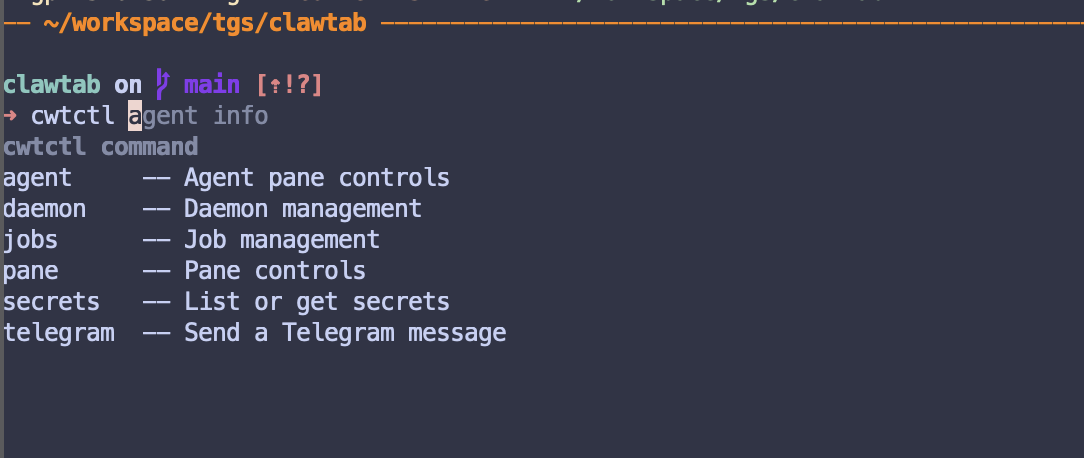
New in ClawTab 0.6.0. Follow the session guide for setup and recovery.
ClawTab also supports agents without tmux. Launch the command through ClawTab so a separate owner process can keep its terminal alive:
cwtctl session start -- codex
cwtctl session start -- claude
cwtctl session start --detached -- opencode
cwtctl session list
cwtctl session attach managed:<session-id>
cwtctl session capture managed:<session-id> --history
cwtctl session stop managed:<session-id>
These sessions use a Unix PTY on macOS/Linux and ConPTY on Windows. They appear beside tmux sessions in ClawTab. The owner keeps the process, terminal screen, and up to 10,000 history rows while the desktop app or daemon restarts. Existing commands started outside ClawTab cannot be adopted; launch them through cwtctl session start.
Closing the originating terminal keeps its agent running by default. Use --close-with-terminal to stop it when that terminal closes, or --keep-running to override the global preference. In an attached terminal, press Ctrl+] then d to detach deliberately; explicit detach keeps the process running with either policy.
Taking control on mobile resizes the agent to the mobile terminal. The first local key reclaims control and is consumed. ClawTab restores the latest local terminal dimensions, including any desktop resize while mobile had control. Remote control has a renewable 30-second lease; losing the host connection also releases it. Watching clients cannot resize or type without taking control.
After an owner crash or computer restart, the session is marked interrupted. cwtctl session resume <id> explicitly resumes its saved provider conversation when available. It never automatically replays the original prompt. Enable the provider's ClawTab hooks to retain conversation identity and immediate question/activity events.
Choose the default under Settings > Runtime, or set terminal_backend: managed / terminal_backend: tmux in an individual job's YAML. Windows defaults to managed sessions; existing Unix installations retain tmux as their default. Scheduling, captured output, notifications, question detection, auto-yes, and compatible agent plugins use either backend. Tmux layouts, copy mode, and Move remain tmux features. Use History or session capture --history for managed scrollback.
Windows 10 version 1809 or newer is required. Install your agent CLI, extract the Windows host package, verify its SHA-256 checksum, and run powershell -ExecutionPolicy Bypass -File .\install.ps1 from that extracted package. Then run cwtctl setup and approve its pairing code in the mobile app. Setup registers per-user startup at login; it does not require administrator privileges. Python is needed only for Python plugins, and Git for repository operations.
For a source build:
cd desktop/src-tauri
cargo build -j4 --release --no-default-features --bin cwtctl --bin clawtab-daemon --bin clawtab-hook
.\target\release\cwtctl.exe setup
.\target\release\cwtctl.exe session start -- codex
The installer puts each version in a separate directory and updates the CLI shim and startup path. Updating the host leaves existing owners on their original executable until their sessions end. Keep those older directories while their sessions are running. This package provides the Windows host and CLI; the Tauri desktop UI remains a separate platform target.
ClawTab works headlessly through tmux, the daemon, and cwtctl. The macOS GUI is optional: open it when you want visual split workspaces or a Mind Map of running Claude Code, Codex, and OpenCode agents. Click an agent in the map to open its live tmux terminal, then close the GUI without stopping the session.
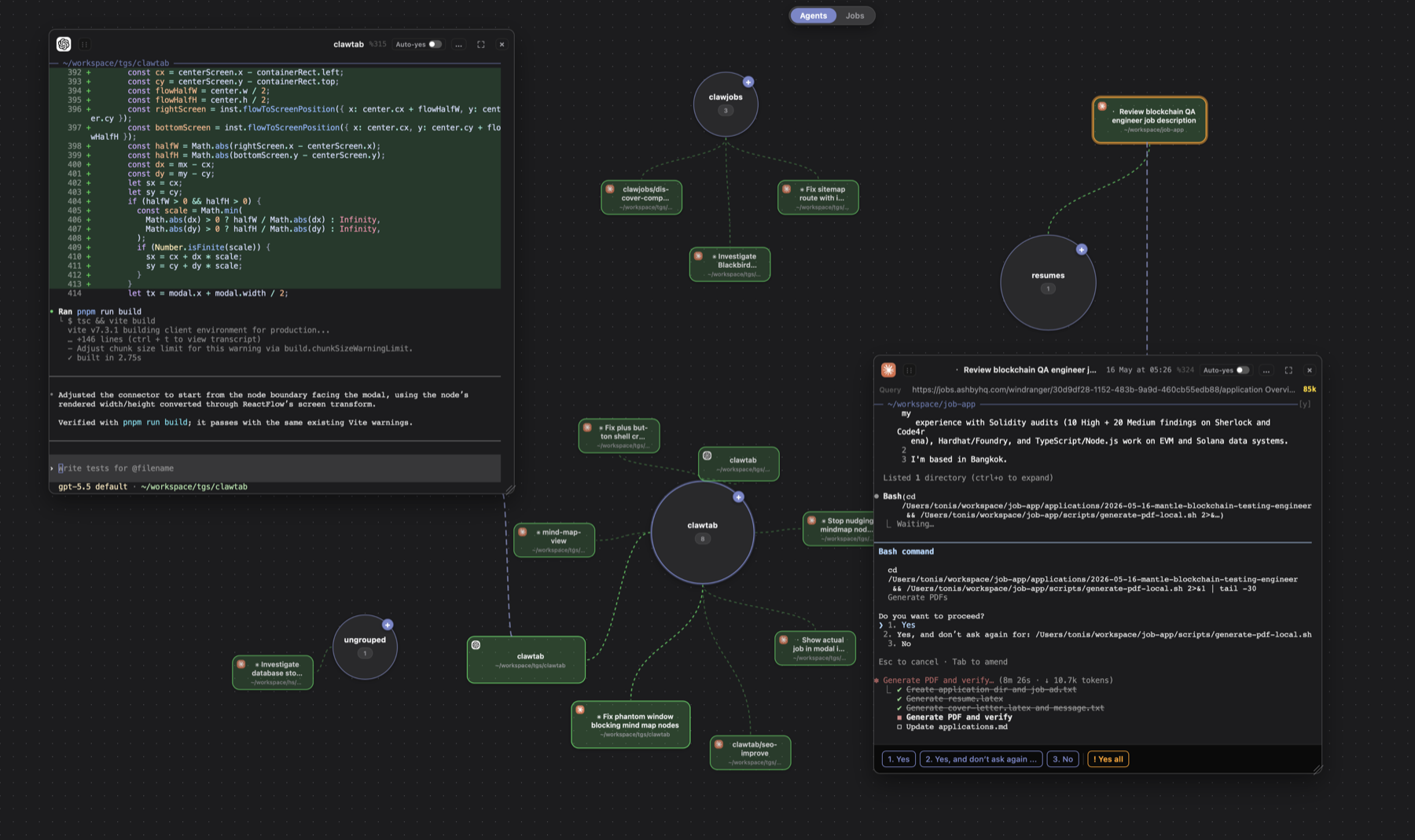
Read more in the Mind Map article.
- Live terminal - View and control the same tmux pane from the web or mobile app.
- Automatic question detection - Detect when supported agents are waiting for input.
- One-tap answers - Render answer choices as buttons and send the response to the pane.
- Multi-agent support - Follow questions and output across providers, projects, and tmux windows.

The daemon owns the tmux sessions and connects to the Rust/Axum relay. Web and mobile clients receive terminal output and send input through the relay back to the original pane.
tmux pane <-> ClawTab daemon <-> Relay server <-> Web or mobile client
- Start in tmux - Run an agent normally or launch a configured job through
cwtctl,cwttui, the desktop app, Telegram, or a schedule. - Discover the session - The daemon associates provider metadata, activity, questions, and a useful task title with the pane ID.
- Keep it alive - tmux preserves the process and terminal state while the daemon keeps schedules and integrations running.
- Open it anywhere - Attach through tmux or view the same pane from the desktop, web, or mobile interface.
- Answer from any client - Input is routed back to the original pane, so the agent continues in one durable session.
Mix providers without reorganizing your workspace or giving up session visibility:
- Use Claude Code when it fits the task and current allowance.
- Switch to Codex when another model or subscription is a better fit.
- Keep OpenCode available as an additional provider and model gateway.
brew install --cask tonisives/tap/clawtab
cwtctl daemon install
cwtctl daemon status
The daemon starts at login through launchd and continues running independently of the desktop app.
The default package installs the daemon, cwtctl, agent hooks, and Zsh completion. Add the desktop app separately for split workspaces, the Mind Map, and visual settings:
brew install --cask tonisives/tap/clawtab-desktopRequires macOS 10.15+, Rust, Node.js, pnpm, and tmux.
git clone https://github.com/tonisives/clawtab.git
cd clawtab
pnpm install
cargo tauri build| Binary | Purpose |
|---|---|
clawtab-daemon |
Headless scheduler, agent monitor, relay client, PTY owner, and IPC server |
cwtctl |
CLI for agents, jobs, panes, secrets, Telegram, and daemon lifecycle |
cwttui |
Terminal job interface built with ratatui |
clawtab |
Optional Tauri GUI for split workspaces, Mind Map, settings, and history |
- tmux
- At least one supported agent CLI, such as Claude Code, Codex, or OpenCode
Download ClawTab from the App Store.
Access the hosted Remote at remote.clawtab.cc.
The relay is required for Web Remote and the iOS app. You can deploy it yourself or use the hosted service at relay.clawtab.cc.
Full documentation is available in the docs folder or at clawtab.cc.
- Quick Start
- CLI and TUI
- Architecture
- Remote Access
- Job Types
- Secrets
- Telegram
- Workspace Sharing
- Vim and tmux Navigation
- Self-hosted Deployment
ClawTab is available under the MIT License.
Tmux remains the workspace. ClawTab adds the agent-specific control plane around it: task titles, working and waiting states, question detection, auto-yes, schedules, secrets, notifications, session search, and access from desktop or mobile. You can keep using normal tmux commands and remove ClawTab without losing a proprietary session format.
No. The daemon runs through launchd and owns background scheduling, monitoring, notifications, and Remote connectivity. The desktop app is an optional visual client.
ClawTab includes autonomous jobs, schedules, and remote notifications, with an emphasis on keeping agent sessions in tmux and making those same panes available through terminal, desktop, web, and mobile interfaces.
ClawTab does not replace the agent CLI. It lets Claude Code, Codex, OpenCode, and normal shells share one manageable tmux workspace, so you can choose the best provider for each task.
The desktop app and local tools are MIT licensed and free. You can self-host the relay for free or use the hosted Remote subscription.